How to Use Your B2B Sales Portal
Your Orchid B2B Sales Portal is a branded ordering platform that connects your sales team to your FFL dealer network. This guide helps you understand what the portal is, how it's organized, and the order in which you'll stand it up with Orchid's onboarding team.
What Your Portal Does
Whether your dealers belong to buying groups like Nations Best Sports (NBS) or order direct, your portal is the single system that captures, validates, and routes every order through to fulfillment.
Once you're live, your team will be able to:
- Maintain a complete database of your FFL dealers, including FFL numbers, expiration dates, points of contact, and shipping locations.
- Publish a product catalog with Buy-Group-specific pricing so every dealer sees the right price automatically.
- Take orders with built-in promotion logic, volume discounts, and payment terms applied at the line level.
- Move orders through a clear review-and-approval lifecycle before submitting them to NBS or your chosen fulfillment path.
- See live dashboard KPIs for your sales team's activity and your company's overall performance.
💡 Tip
Every manufacturer gets their own instance at {yourbrand}.orchidposdev.com in staging and {yourbrand}.orchidpos.com in production. Your logo appears in the left navigation and on the email communications your dealers receive.
How the Portal is Organized
The portal has five main areas, visible in the left-hand navigation. Each has a distinct job, but all of them connect through a common thread — every module is built around Buy Groups and FFL validation.
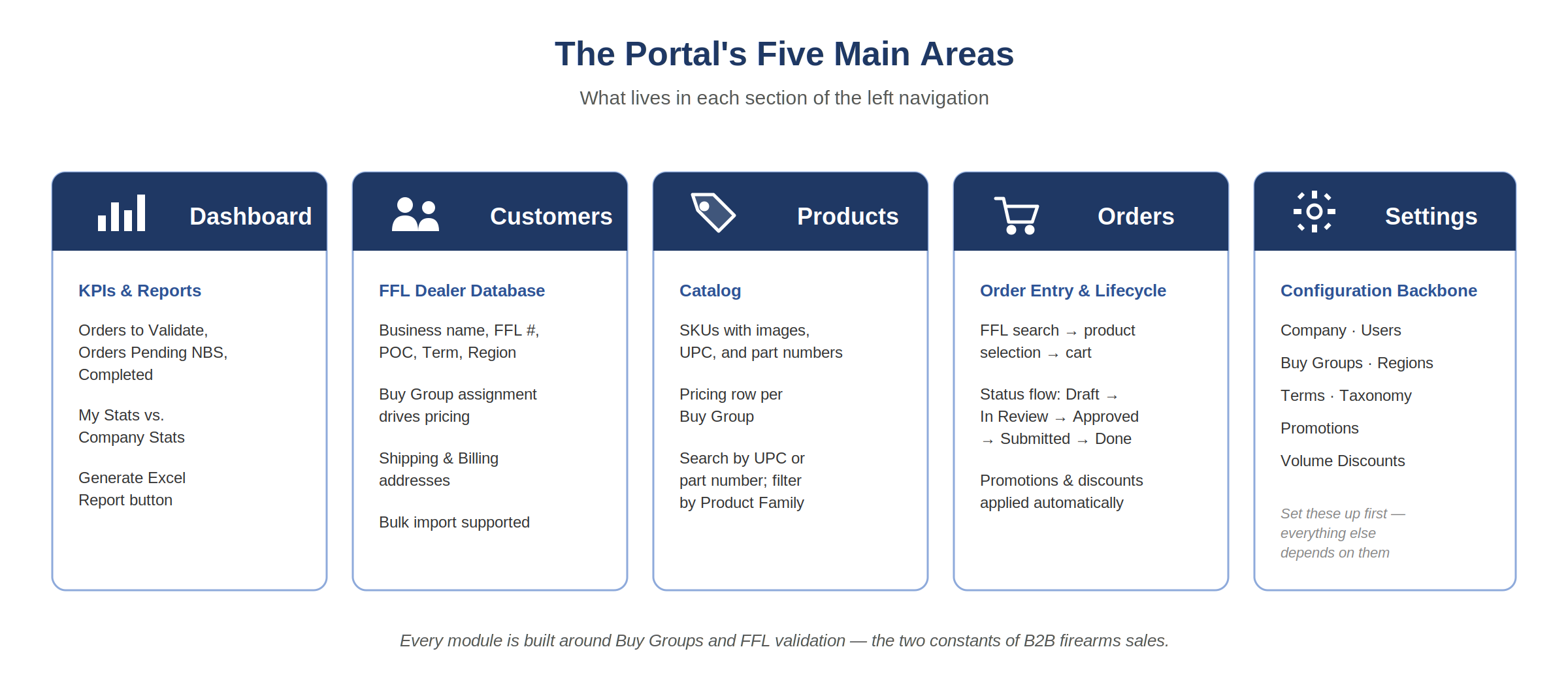
If you've used an e-commerce back office before, the layout will feel familiar. The difference is that the modules are wired together by the two constants of B2B firearms sales: which buying group each dealer belongs to, and whether their FFL is current.
The Setup Order
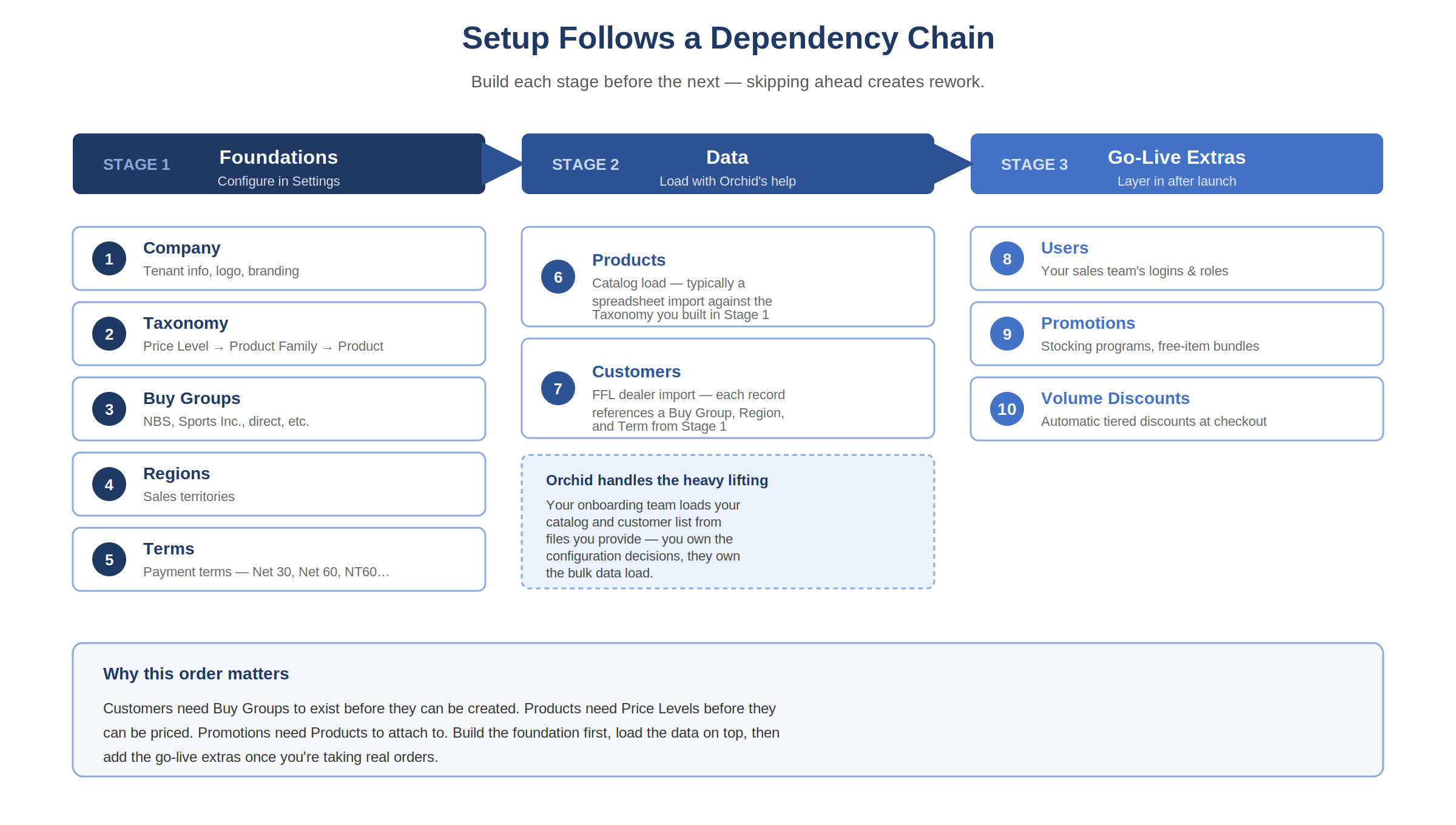
Setup follows a dependency chain. Customers can't be created before their Buy Groups exist. Products can't be priced before Price Levels are defined. Doing it in the wrong order creates rework, so we recommend this sequence:
💡 Tip
Your Orchid onboarding team will typically handle the initial import of your product catalog and customer list from files you provide. You own the configuration choices — how your taxonomy is structured, which Buy Groups apply, what Terms you offer — and all ongoing maintenance. Think of onboarding as co-setup, not self-serve.
Your Foundation: Settings
Settings is where you define the rules the rest of the portal runs on. Every other module — Customers, Products, Orders — reads from what you configure here.
Company: Your tenant-level information — legal name, logo, contact info, and the branding that appears on your portal and in the dealer-facing emails your system generates.
Taxonomy: The three-level hierarchy that organizes your catalog: Price Level (the pricing tier a dealer falls into), Product Family (groupings like "M&P" or "SCAR"), and Product (the specific SKU). Getting this right early pays off — everything from promotions to reporting rolls up through this structure.
Buy Groups: The buying cooperatives and group structures that drive pricing. Each customer is assigned to exactly one Buy Group, and each Buy Group has its own pricing against your catalog. If you sell through NBS, Sports Inc., or distributors like Sports South, Camfour, Bill Hicks, or direct — each is configured here as a Buy Group.
Regions: Your sales territories (Mid East, Southwest, etc.). Regions are assigned to customers and used for filtering, reporting, and sales-rep assignment.
Terms: Payment terms available on orders. Common entries: Prepay, Net 30, Net 60, NT60. Terms are assigned at the customer level and default onto their orders at checkout.
Your Catalog and Your Customers
These two modules are where your sales activity actually happens. They are the day-to-day heart of the portal.
Products: Your product catalog shows each SKU with an image, UPC, part number, Product Family, and a pricing row per Buy Group. That means the same rifle shows one price for NBS dealers and a different price for Sports Inc. dealers automatically, without manual intervention during order entry.
You can add products one at a time or — much more commonly — bulk-import them from a spreadsheet. Your Orchid onboarding team will help you map your existing catalog file to the import template during setup.
Customers: Each customer record represents one FFL dealer. Required data includes:
- Business Name, Ship To, and Sold To (often different)
- Buy Group, Buy Group Member ID, and Buy Group Number
- FFL Name, FFL Number, and FFL Expiry date
- Point of contact — name and email
- Term and Region
- Shipping and Billing addresses
- FFL PDF attachment (the uploaded copy of their license)
Like products, customers can be imported in bulk. FFL expiration dates are tracked so you can flag or block orders from dealers whose license has lapsed.
The Order Lifecycle
Every order moves through a defined set of statuses. Understanding this flow is the fastest way to understand how the portal works end to end.
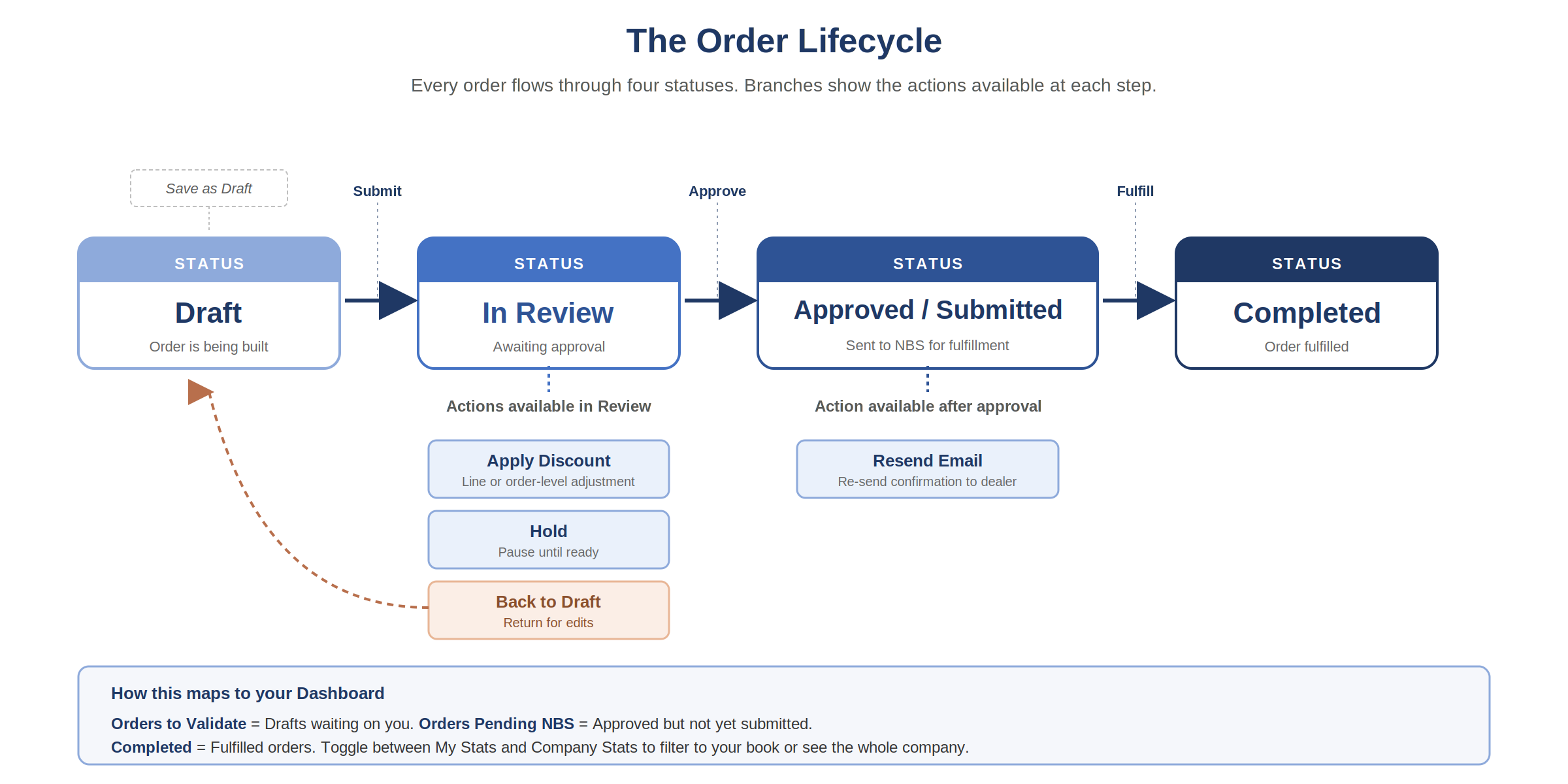
The Hold action pauses an order until you are ready to move it forward — useful when a dealer's FFL is about to expire, when there is a credit question, or when you are waiting on inventory. Back to Draft returns an order to the rep for changes. Once the order is approved and submitted to NBS, the Resend Email action is available in case a confirmation needs to be re-delivered.
Growing Into It
Once you're live and taking orders, here is what you'll layer in next.
Promotions: Configured under Settings > Promotions. Three tab types: Promotion Groups, Free Item Groups, and Promotions. This is where you build programs like "Fall Stocking Dealer Program" with minimum-quantity requirements and free-item bundles.
Volume Discounts: Configured under Settings > Volume Discount Eligible. Define min/max order values and the discount percentage that applies. The portal enforces these automatically at checkout.
Users: Add your sales team under Settings > Users. Each user gets a login, a role, and — where applicable — visibility scoped to their assigned Region.
Reporting: The Generate Excel Report button on the dashboard exports order and performance data for analysis in Excel or your BI tool. Additional reporting enhancements are on the roadmap — talk to your Orchid Customer Success Manager for specifics.
Where to get help:
- Help Center — full article library and video walkthroughs
- Support tickets — submit via the Help Center or email your support contact at Orchid
⚠️ Compliance
FFL expiration dates are tracked so you can flag or block orders from dealers whose license has lapsed. Promotions and Volume Discount Eligibility also live in Settings, but they are typically configured after you go live rather than during initial setup.