Orchid eState - Quick Start Guide
Orchid eState is a firearms compliance research tool that consolidates state bill tracking, firearm law libraries, firearm restriction searches, and ammunition restriction searches into a single dashboard. This guide walks you through logging in and navigating each core module.
(This guide is not for API users and is intended for those who access Orchid eState through the User Interface)
Steps
- Open the Orchid Software Portal in your browser. Navigate to app.fflbizhub.com/portal/login to reach the unified sign-in page for Orchid eBound and Orchid eState.
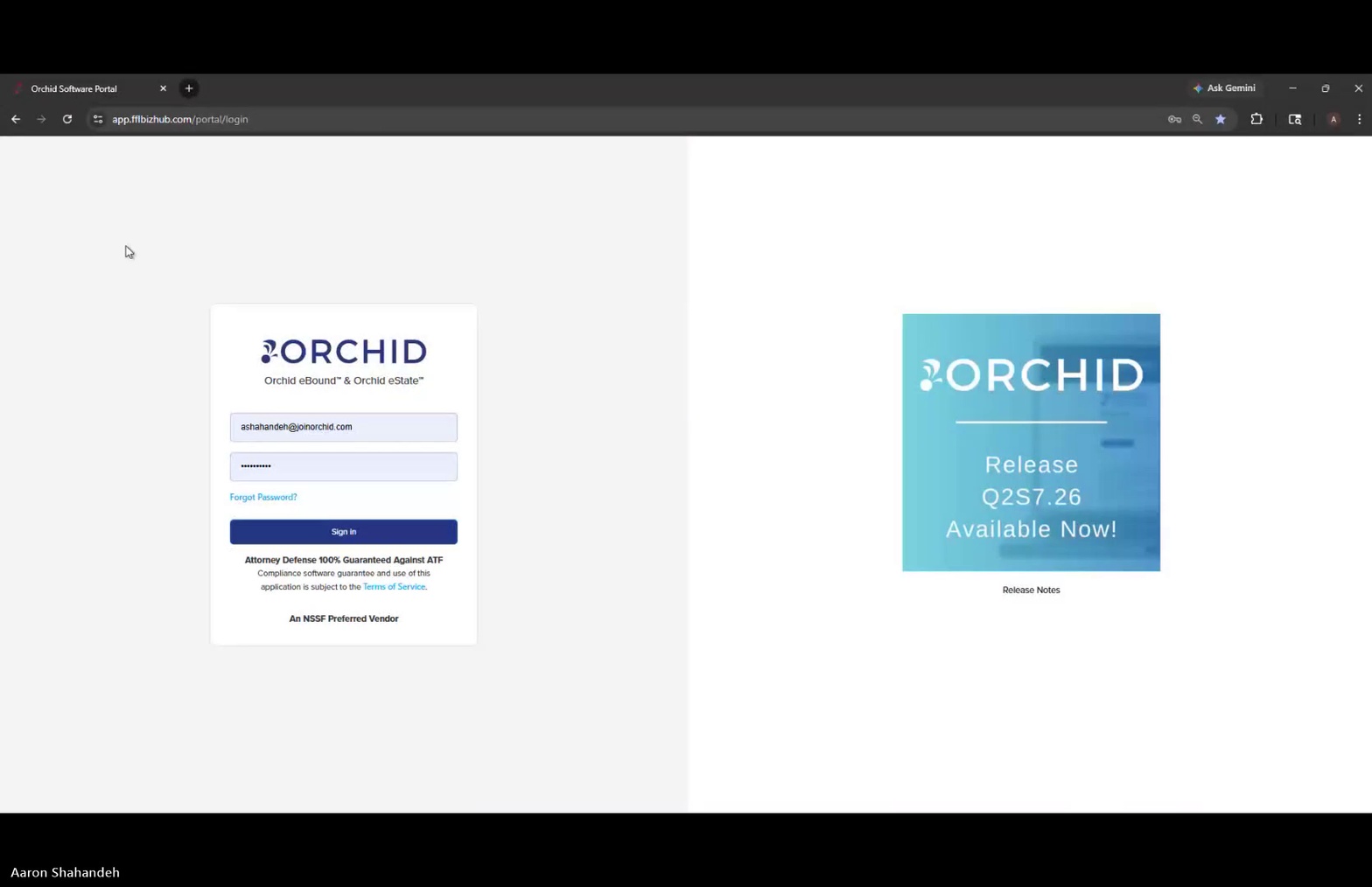
Orchid Software Portal login page
- Enter your email address. Type your registered Orchid account email into the username field.
- Enter your password. Type your password into the password field. Use the Forgot Password? link below the field if you need to reset it.
- Click Sign In. Submit your credentials to access the portal.
- Land on the Orchid eState Dashboard. After signing in, you will arrive at the eState Dashboard, which displays the US Firearm Bill Tracker Overview and Recent Legislative Activity.
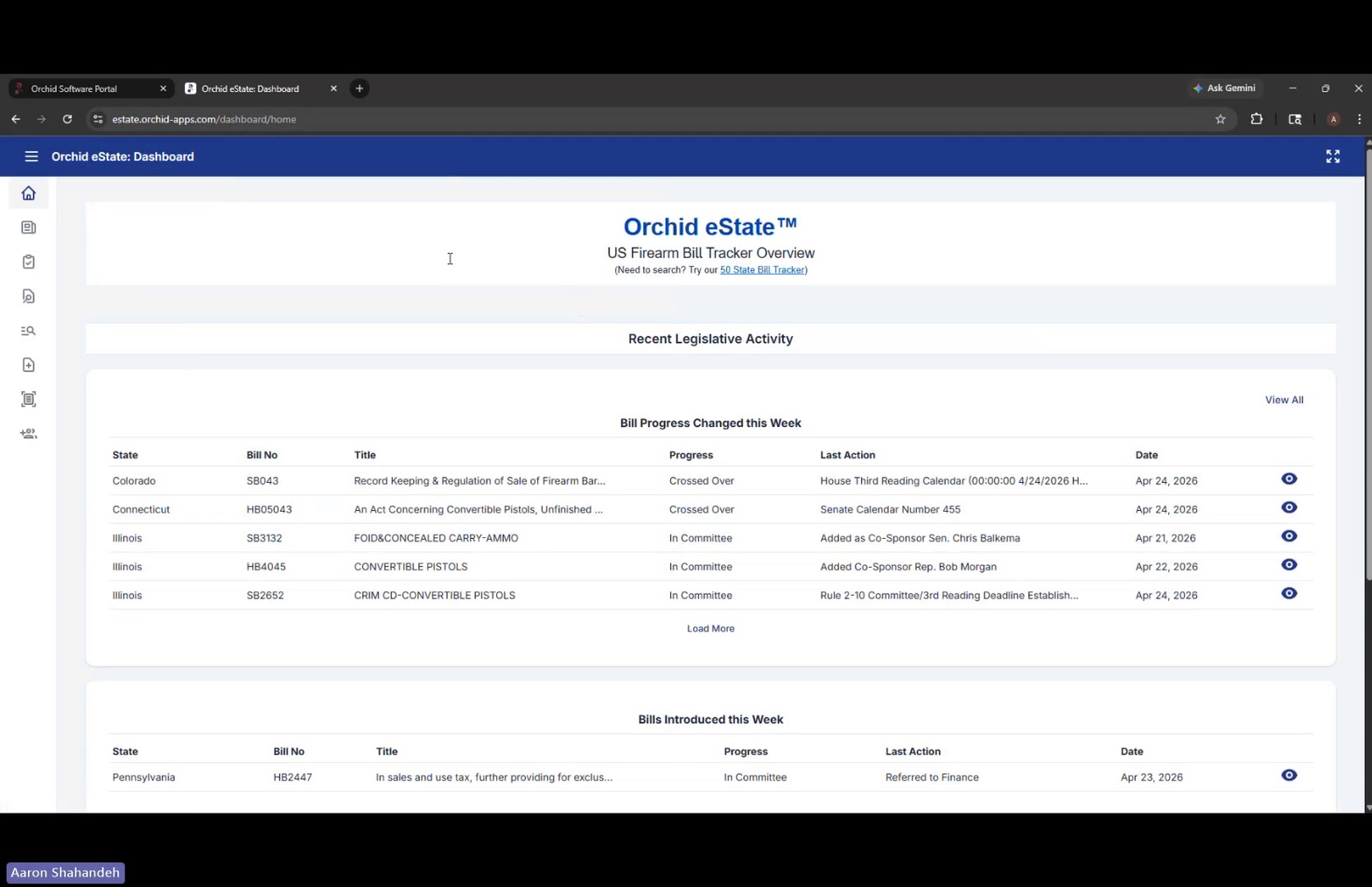
Orchid eState Dashboard home view
- Review the Bill Progress Changed this Week table. This section lists bills whose progress has changed recently, showing State, Bill No, Title, Progress, Last Action, and Date columns.
- Scroll down to view Bills Introduced this Week and Bills Voted on This Week. These additional tables on the dashboard surface newly introduced legislation and weekly voting activity.
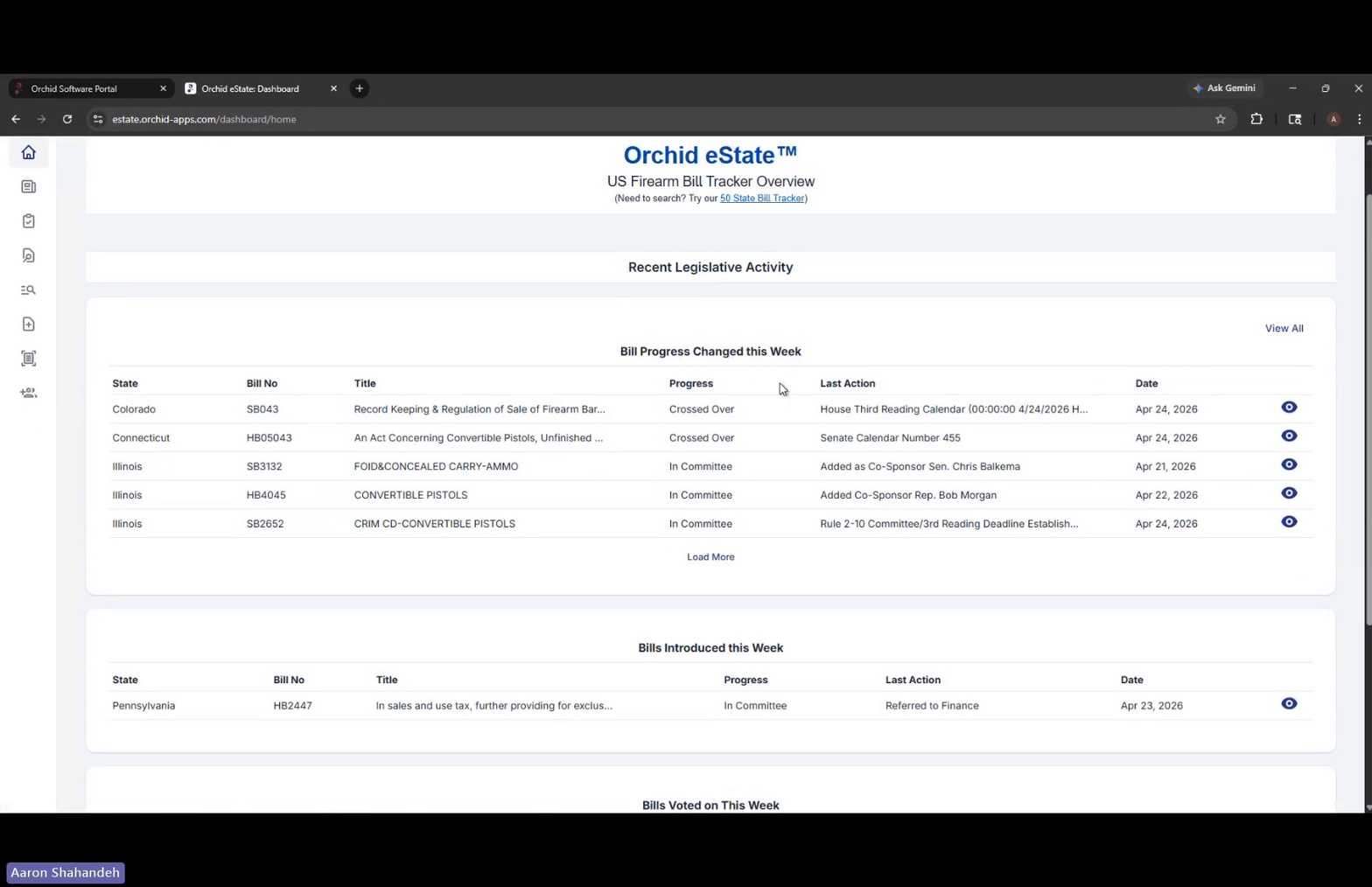
Dashboard showing Bills Introduced and Voted sections
- Click the eye (View Details) icon on any bill row. This opens the full bill details for any item in the legislative activity tables.
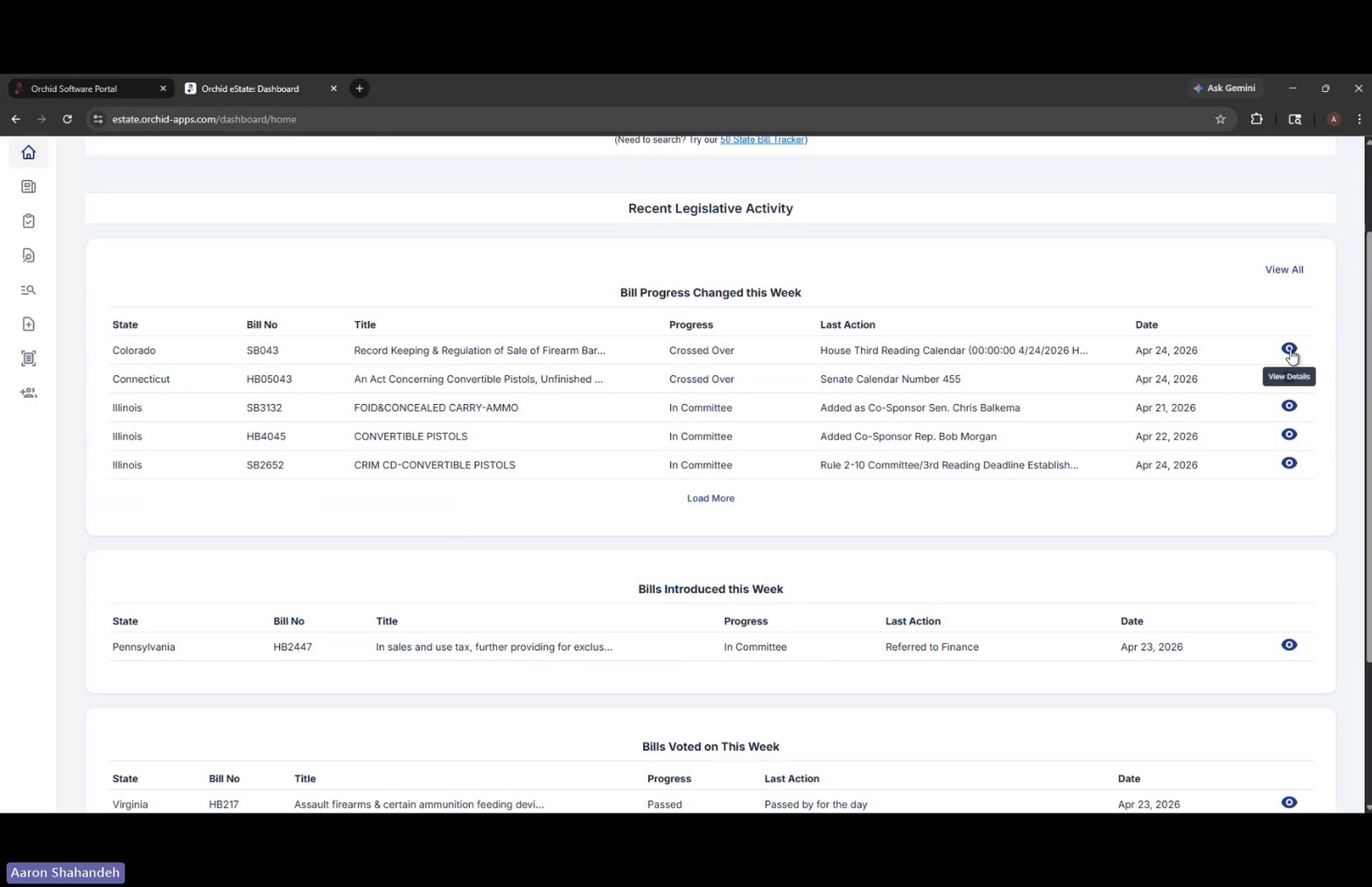
View Details icon on a bill row
- Open the left navigation menu. Click the menu icon in the upper-left to expose the full module list: Dashboard, State and Federal Firearm Bill Tracker, Firearm Law Library and Rosters, Firearm Restriction Search, Ammunition Search, Submit UPC for Classification, Smart Phone UPC Scan, and My Notifications.
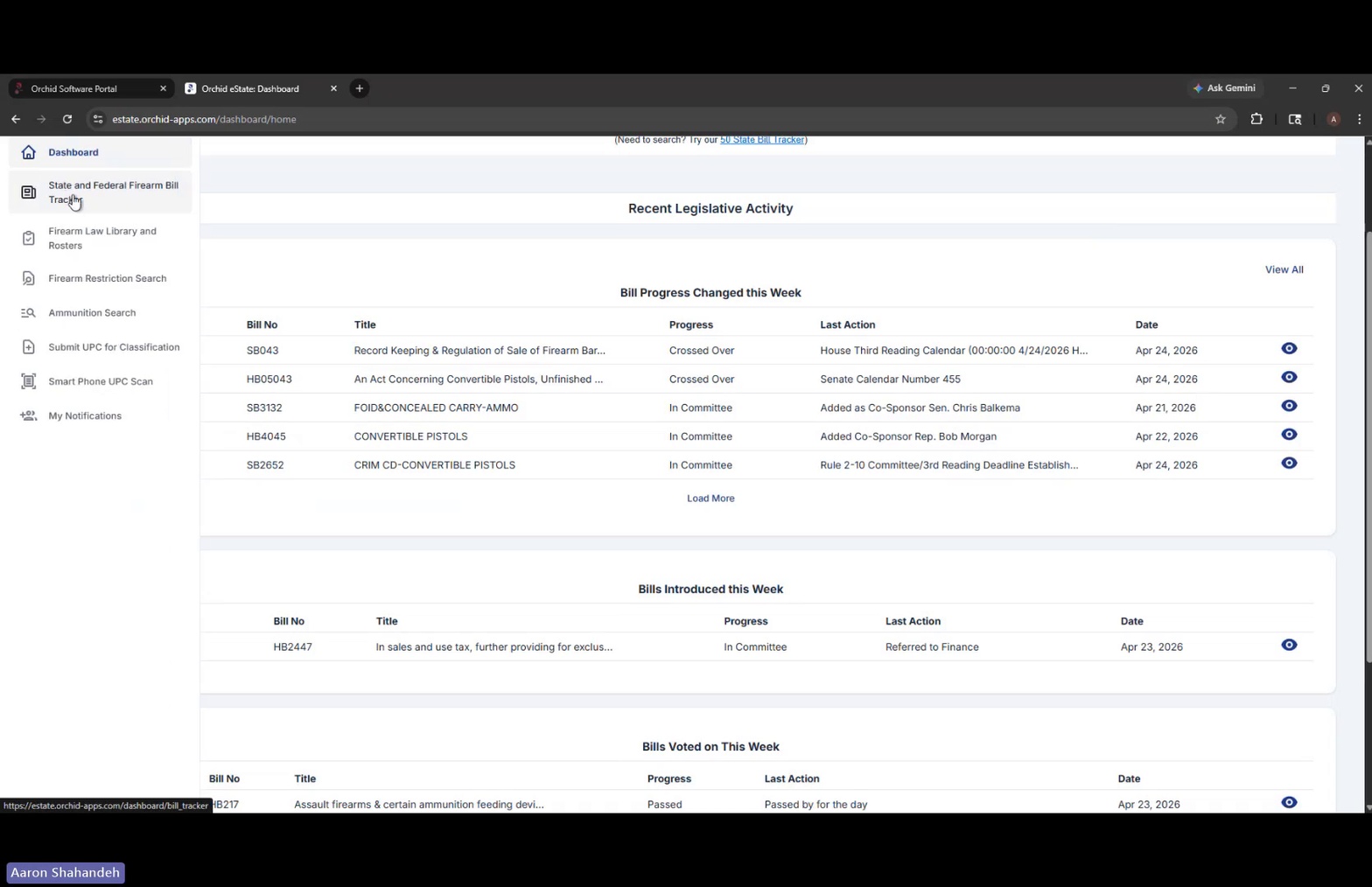
Left navigation menu expanded
- Select State and Federal Firearm Bill Tracker. This opens the full bill tracker page where you can search all tracked legislation.
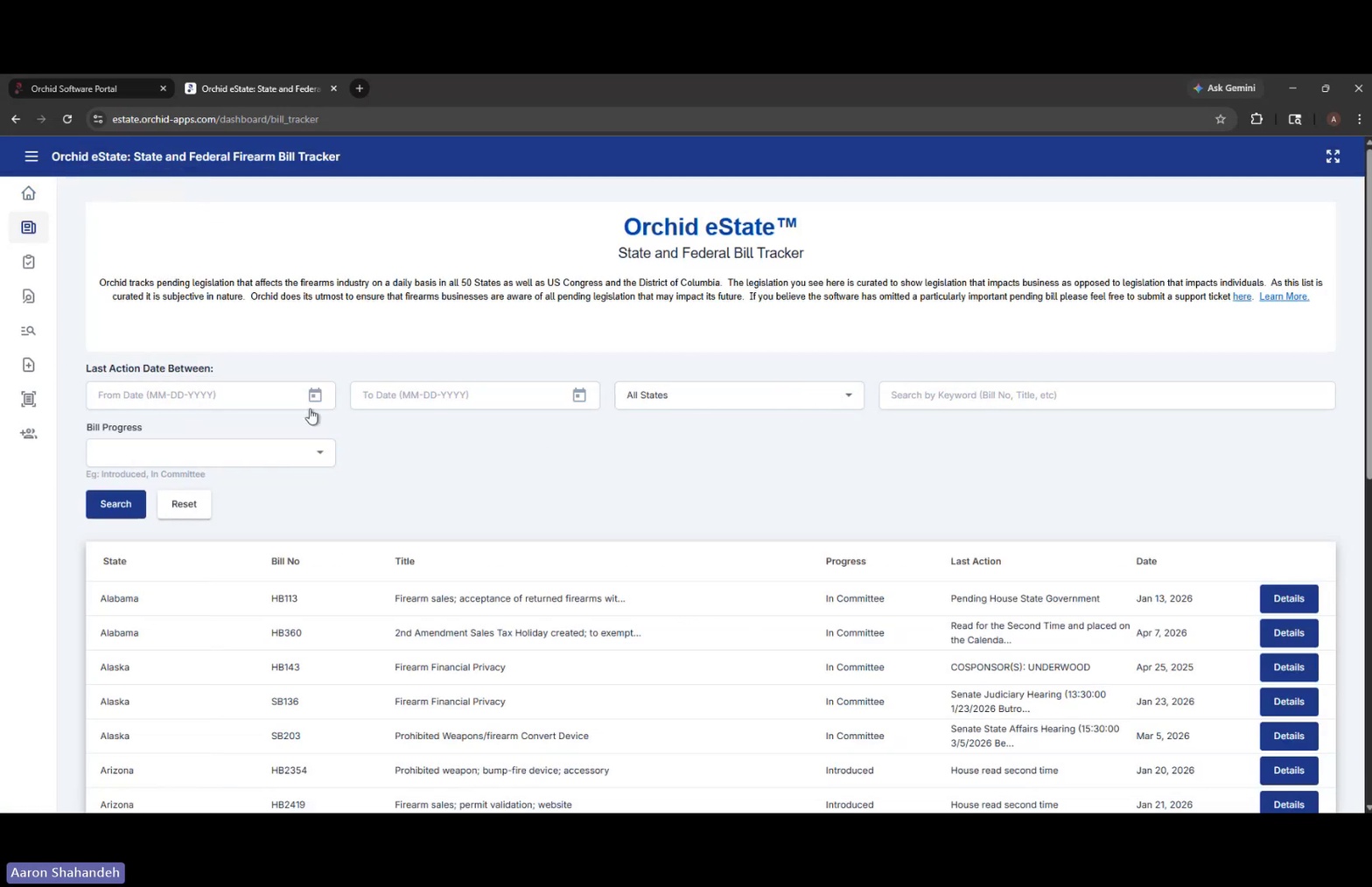
State and Federal Firearm Bill Tracker page
- Filter bills using the search controls. Use the Last Action Date Between From/To date pickers, the All States dropdown, the Search by Keyword field, and the Bill Progress dropdown to narrow results.
- Click Search to apply filters or Reset to clear them. The results table updates with matching bills.
- Click Details on any bill row to view the full record. Each row in the results table includes a Details button.
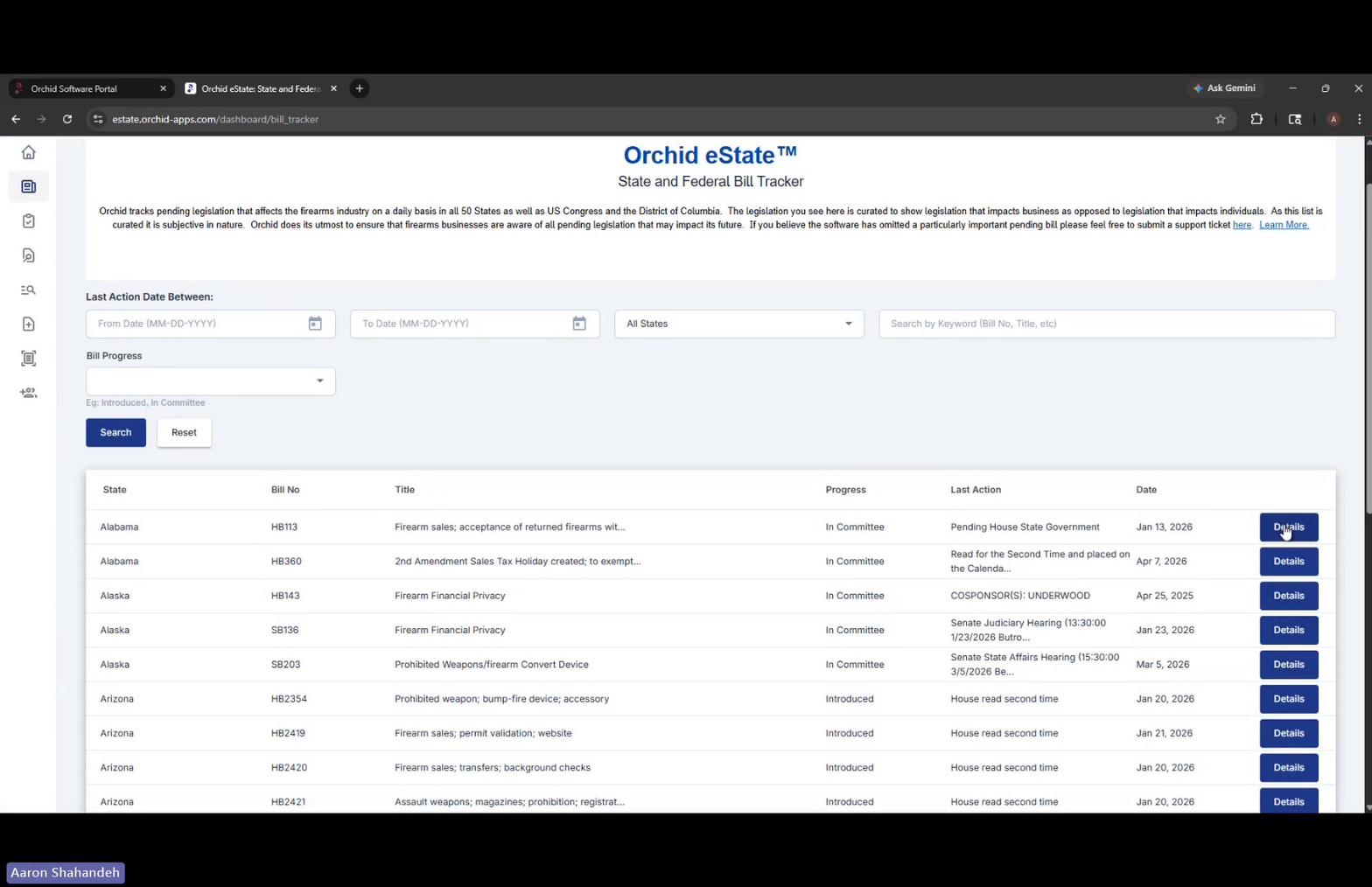
Bill tracker results with Details buttons
- Navigate to Firearm Law Library and Rosters from the left menu. This module replicates ATF's State Laws and Published Ordinances – Firearms (35th Edition) and links to state handgun rosters.
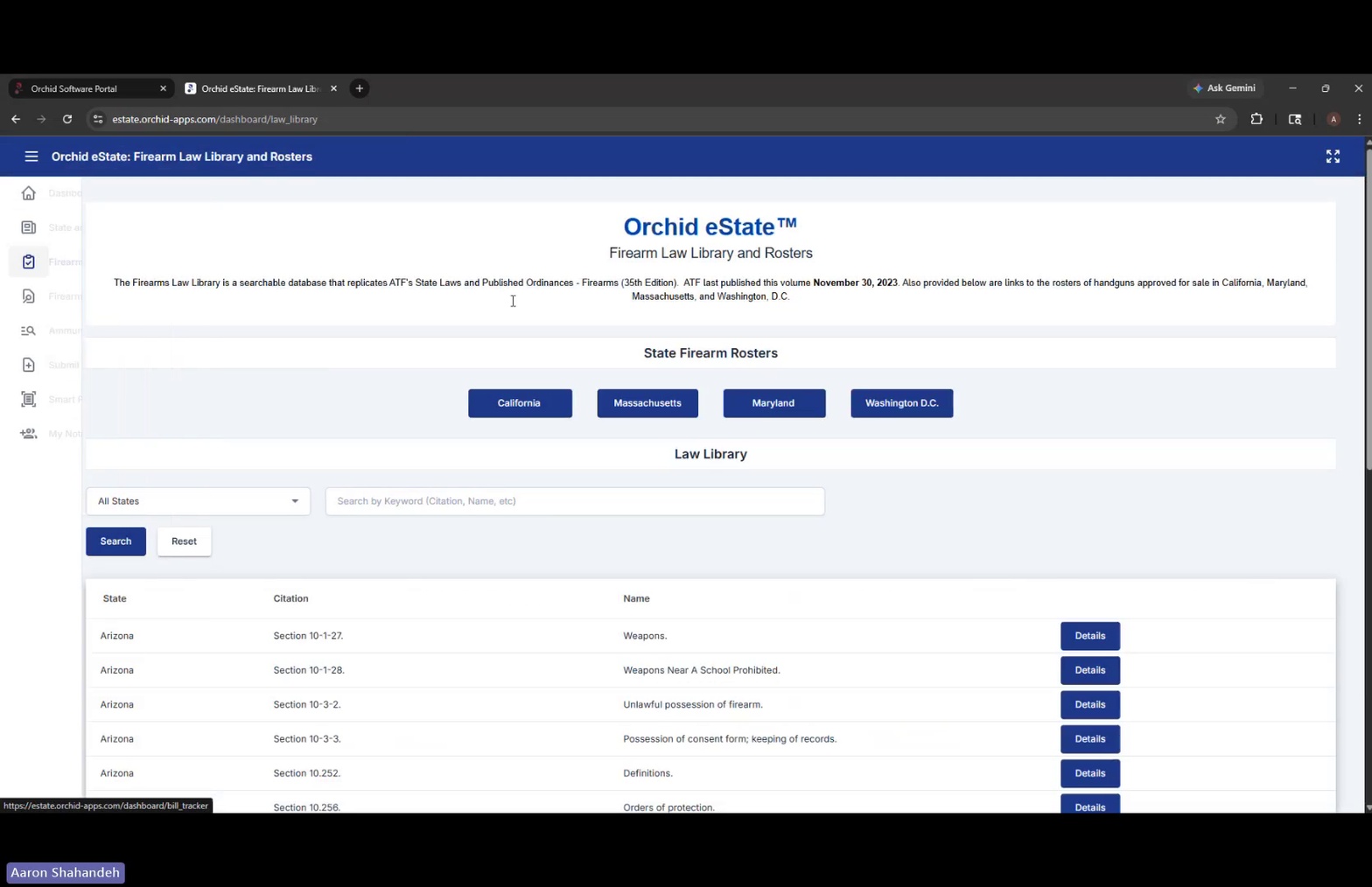
Firearm Law Library and Rosters page
- Click a State Firearm Roster button (California, Massachusetts, Maryland, or Washington D.C.). Each button opens that state's official approved-handgun roster in a new tab.
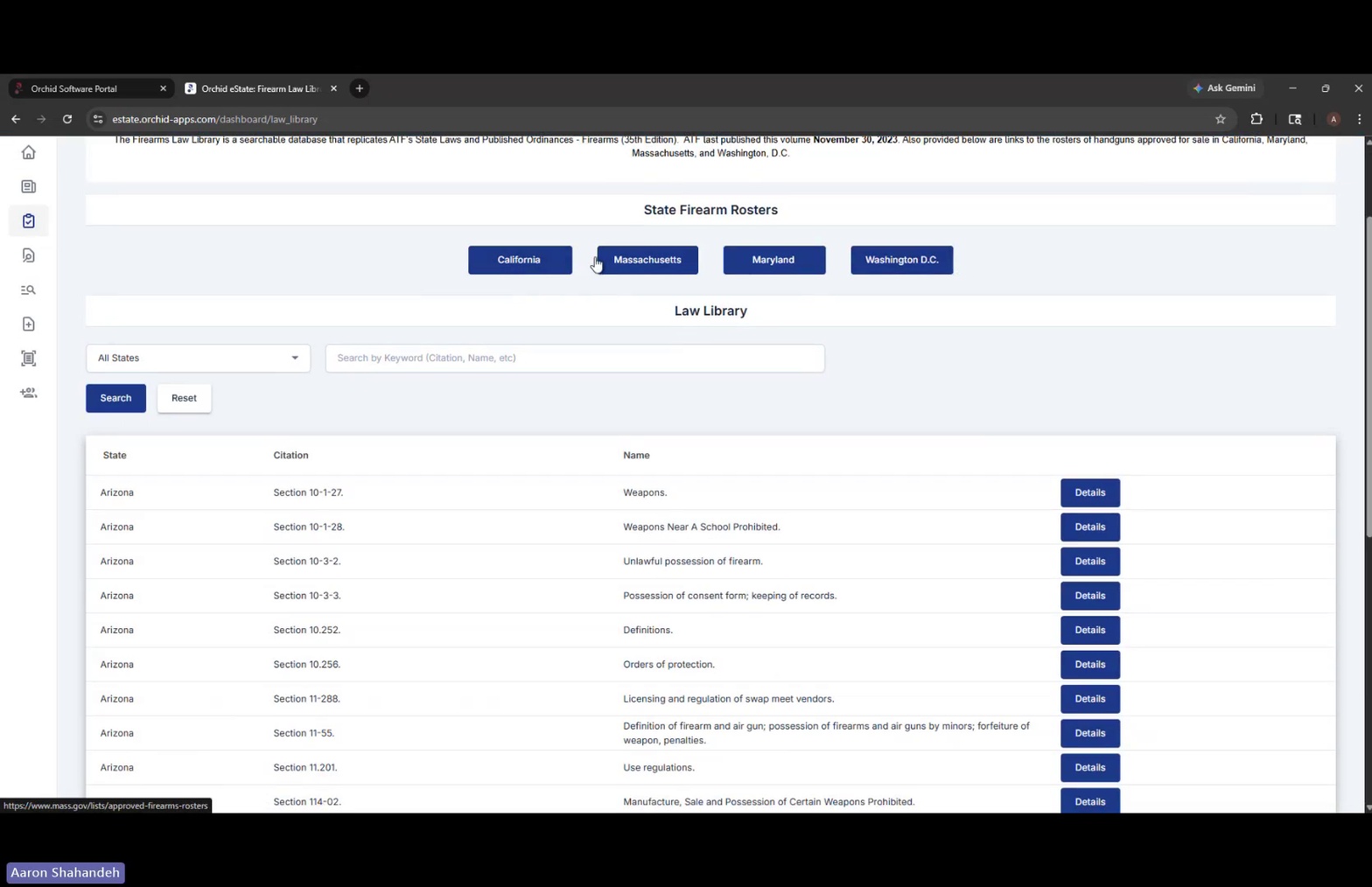
State Firearm Roster buttons
- Search the Law Library. Use the All States dropdown and the Search by Keyword (Citation, Name, etc) field, then click Search or Reset.
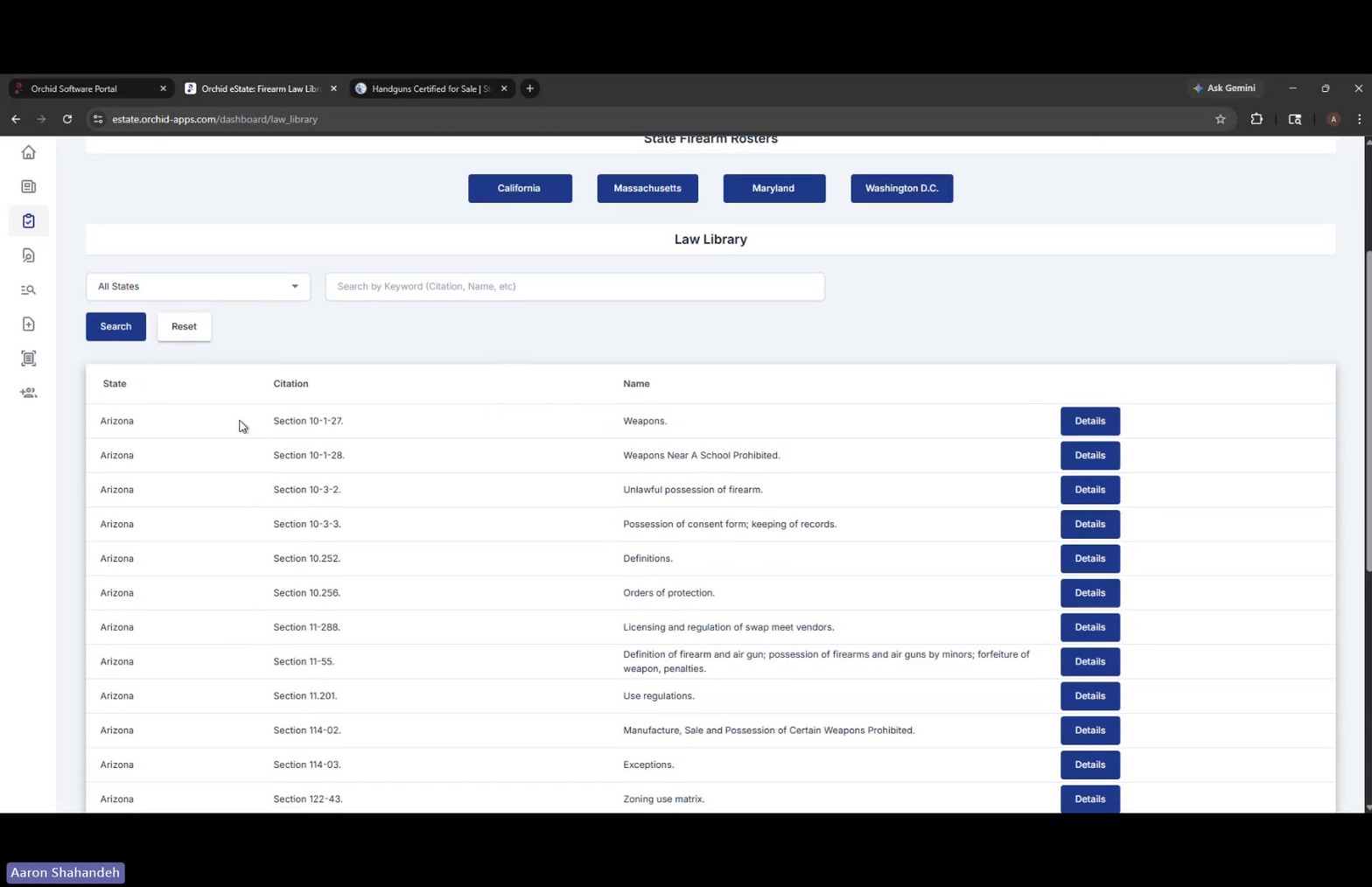
Law Library search controls and results
- Click Details on a Law Library entry. This opens a modal showing the State, Citation, Source, Name, and full Description text for that statute.
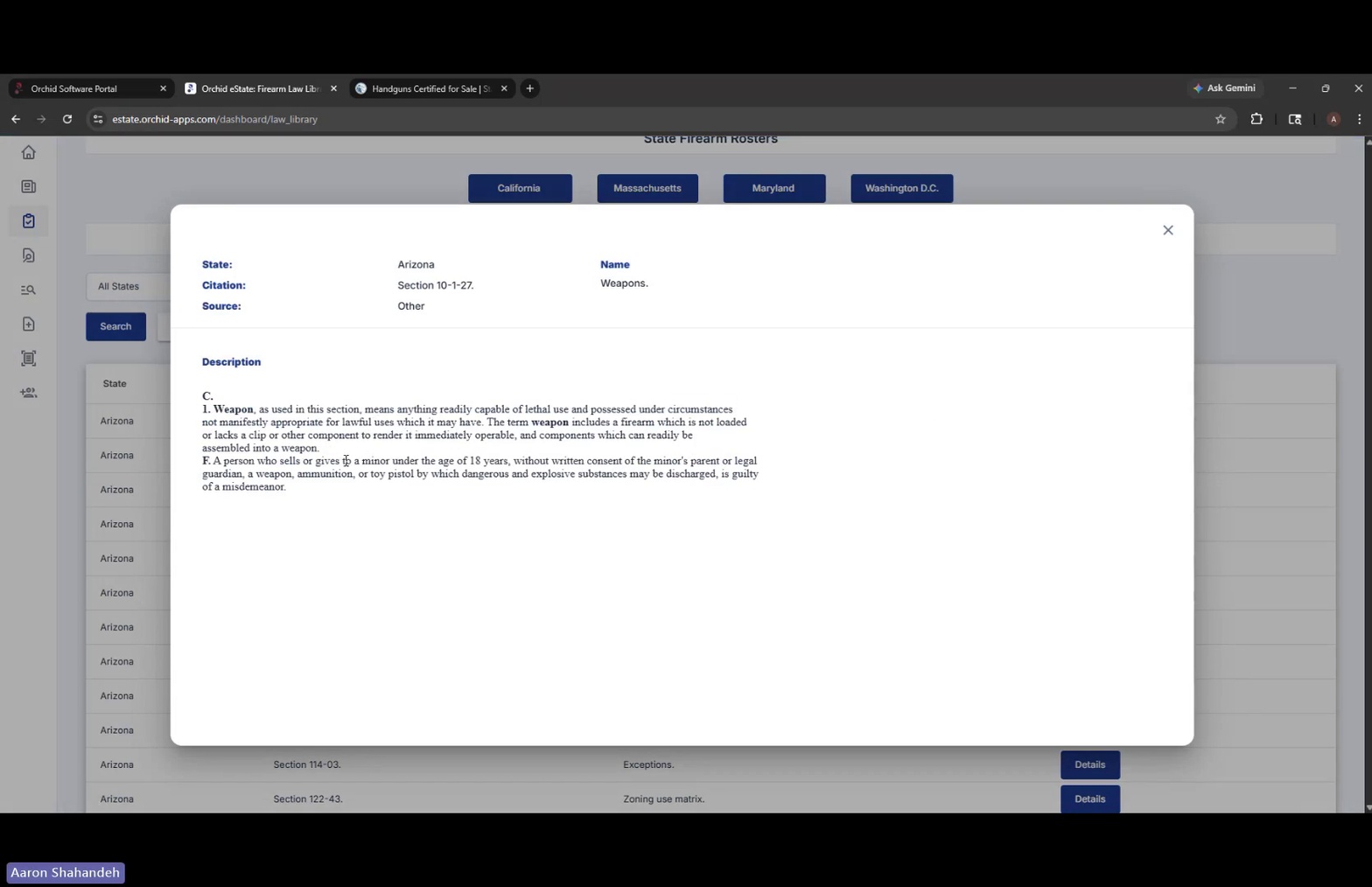
Law Library entry detail modal
- Close the detail modal using the X in the upper-right. This returns you to the Law Library results list.
- Open Firearm Restriction Search from the left menu. This module determines whether a specific firearm is legal for sale in a given jurisdiction.
- Choose your search method. Select either Attribute Selection (Single product) or UPC Entry (One or more Product), then click Next.
Choose Search Method step
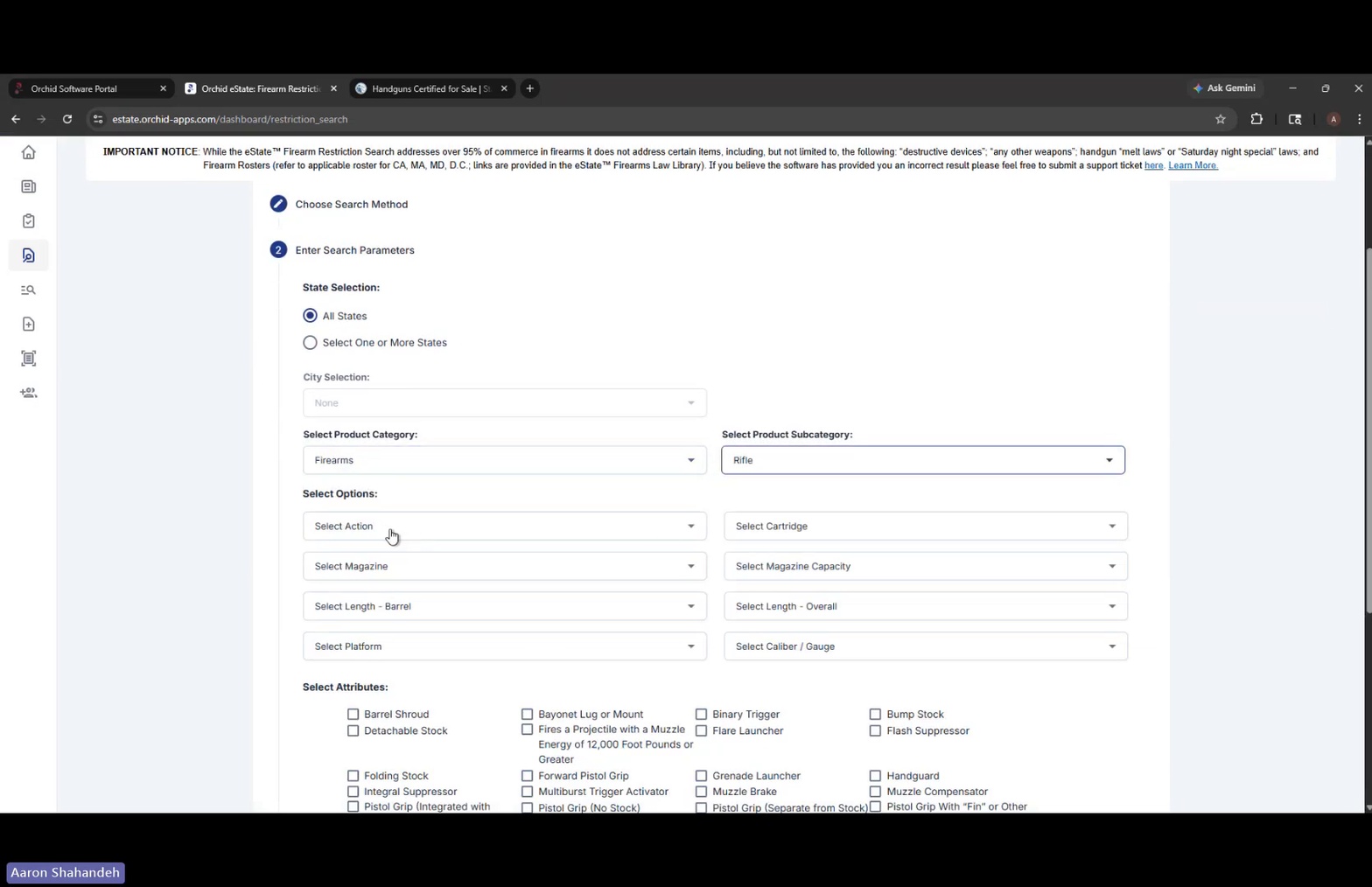
- Set State Selection. Choose All States or Select One or More States to scope your search.
- Choose a City Selection (optional). Use the None dropdown to add a city-level restriction layer if needed.
- Select Product Category and Subcategory. For example, choose Firearms as the category and Rifle as the subcategory.
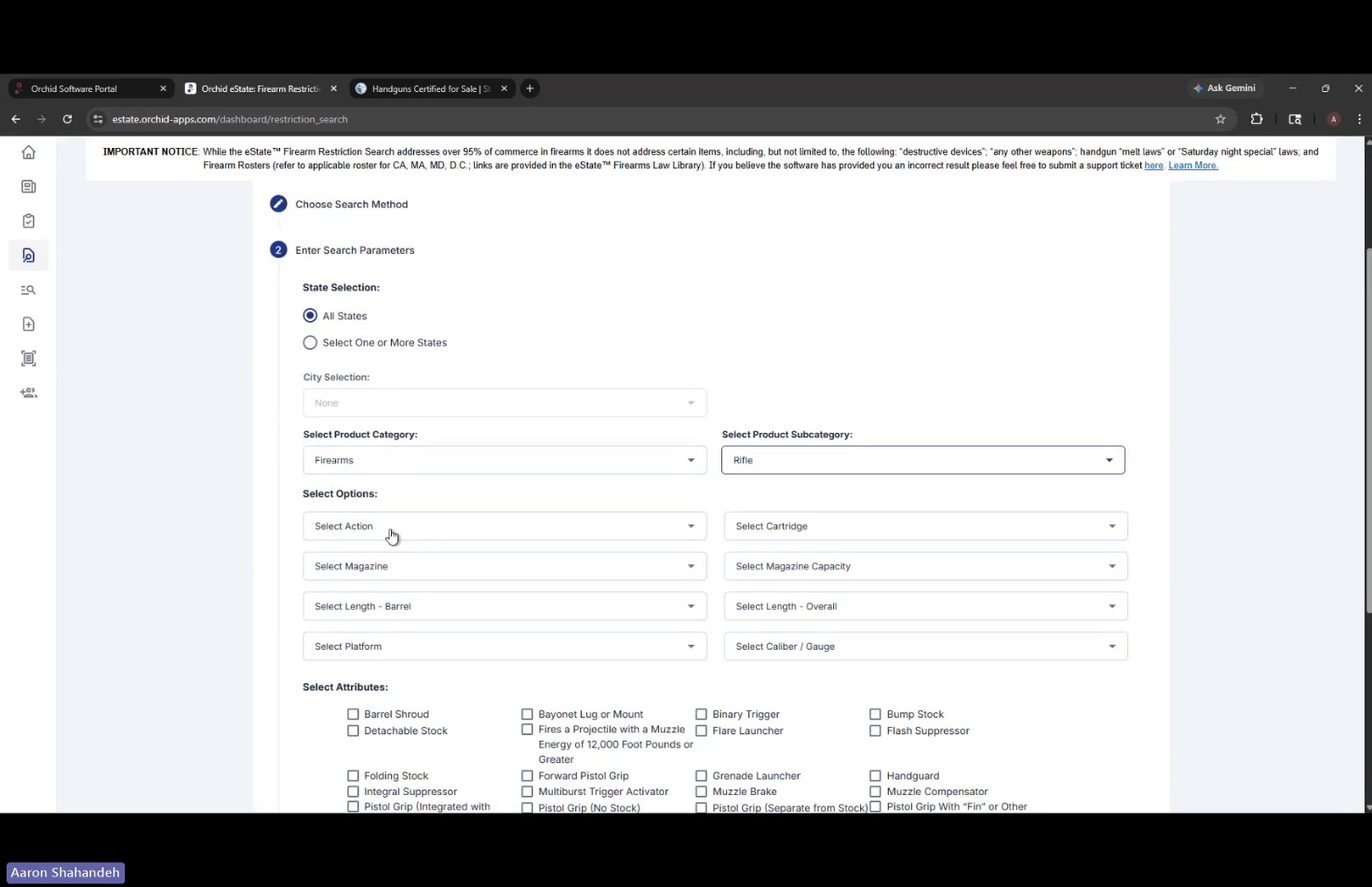
Enter Search Parameters with category selected
- Fill in the Select Options dropdowns. Choose Action (e.g., Semiautomatic), Cartridge (e.g., Centerfire), Magazine (e.g., Detachable excl. Drum), Magazine Capacity (e.g., 30), Length – Barrel (e.g., 16" or Greater), Length – Overall (e.g., 30.00" or Greater), Platform (e.g., AR-15 All Other Barrel Profiles), and Caliber/Gauge (e.g., Any Other Caliber Cartridges).
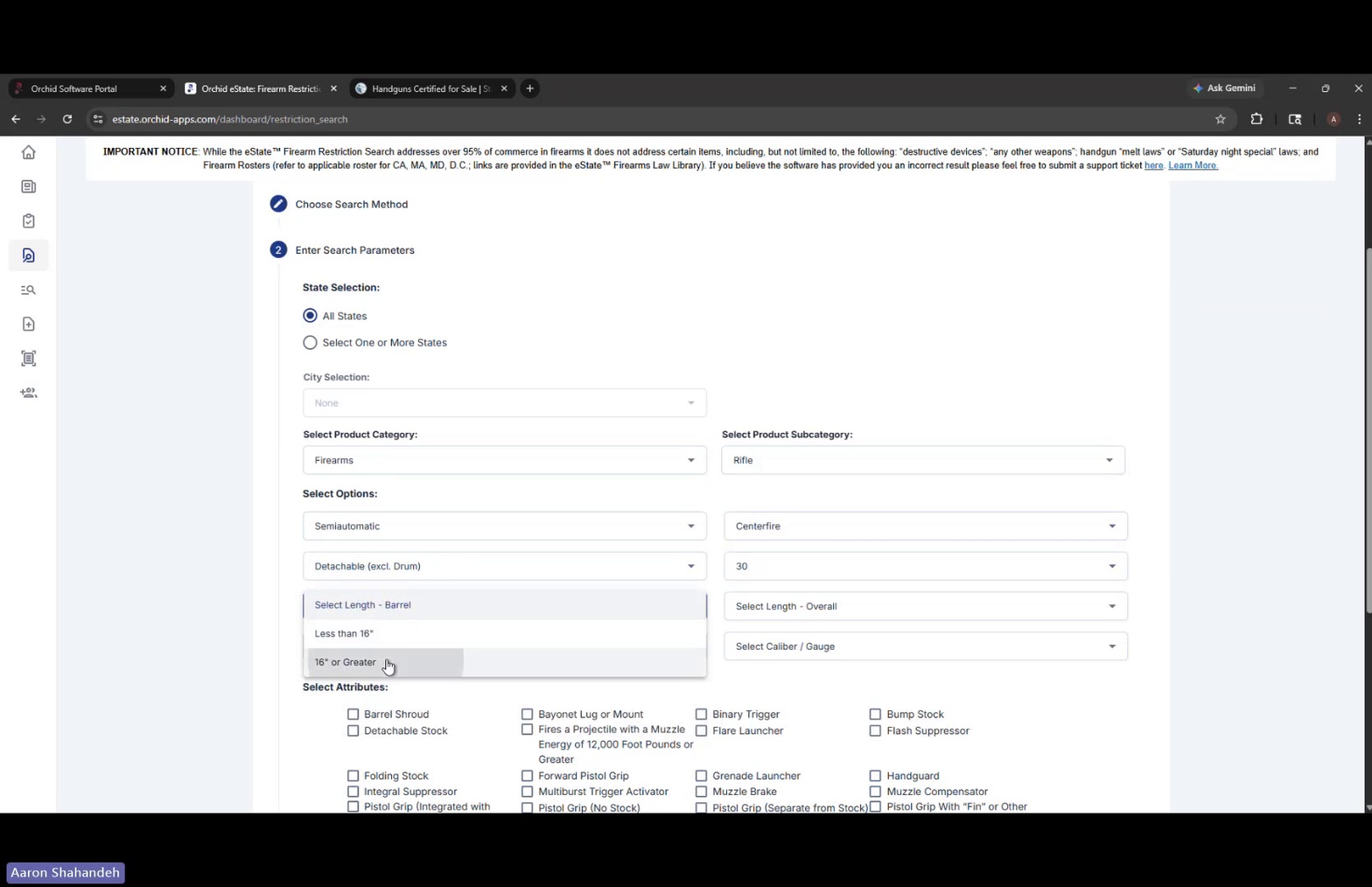
Options dropdowns populated
- Open the Platform dropdown to select a specific platform. Choose from options such as AK-47, AK-74, AR-10, AR-15 (H-BAR or Heavy Barrel), AR-15 (All Other Barrel Profiles), or Other.
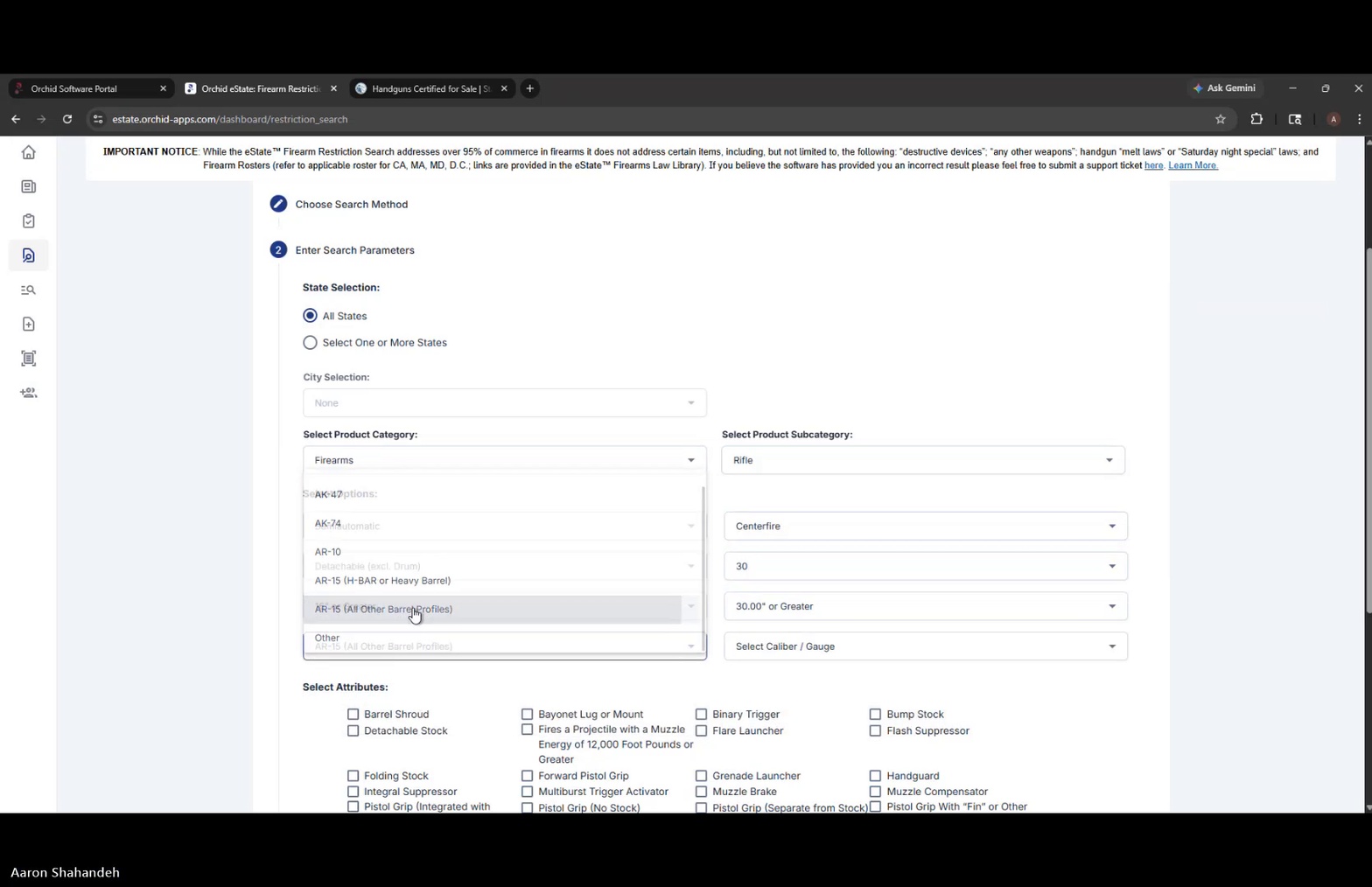
Platform dropdown options
- Check the applicable Select Attributes boxes. Tick any features that apply to the firearm, such as Flash Suppressor, Telescoping Stock, Threaded Barrel, Handguard, Bump Stock, Folding Stock, Pistol Grip, etc.
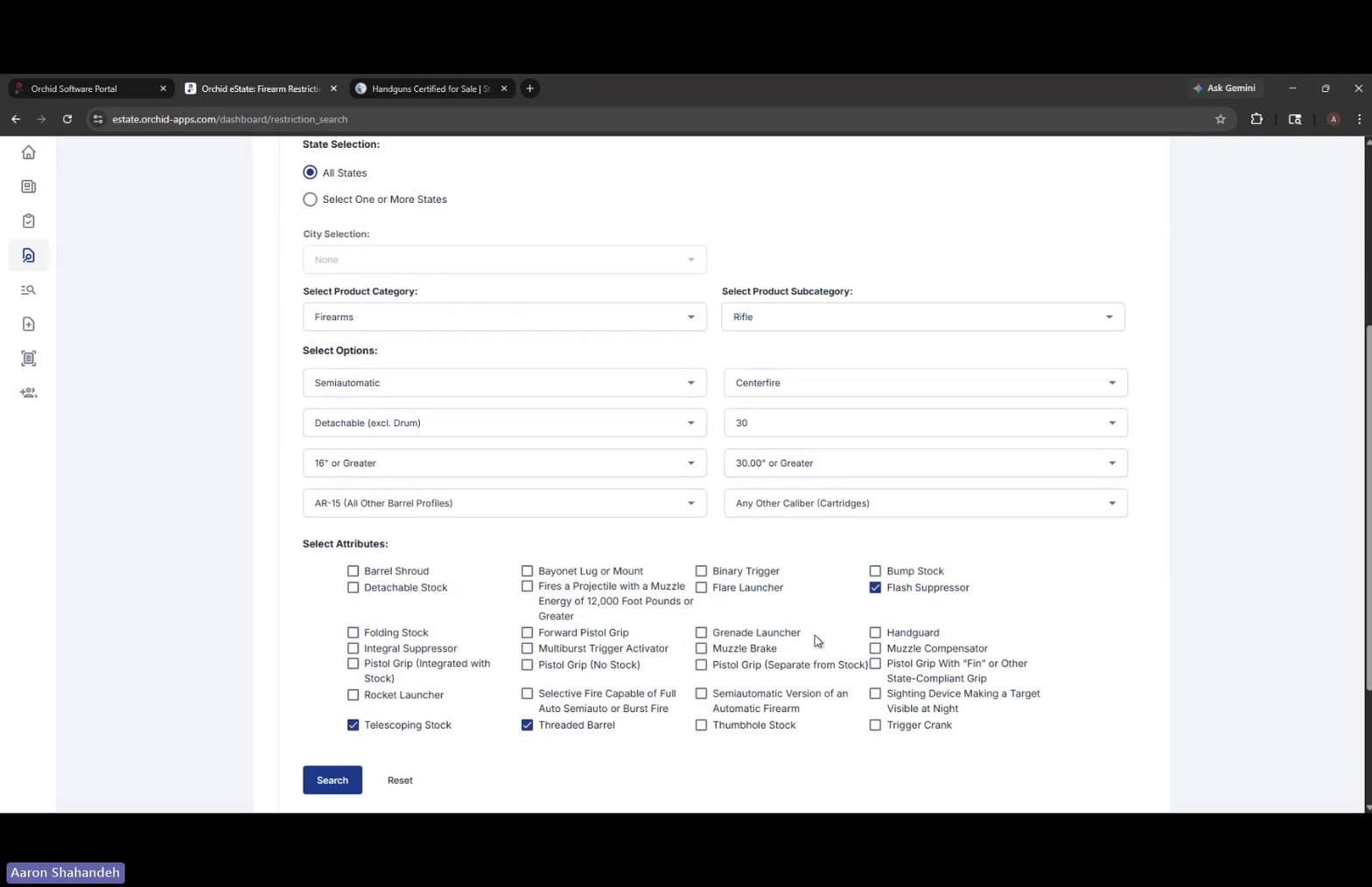
Attributes checkboxes selected
- Click Search to run the restriction check, or Reset to start over. The system evaluates all 50 states plus tracked municipalities.
- Review the Prohibited in the Following Locations results. Restricted states and cities display in red banners under the States heading.
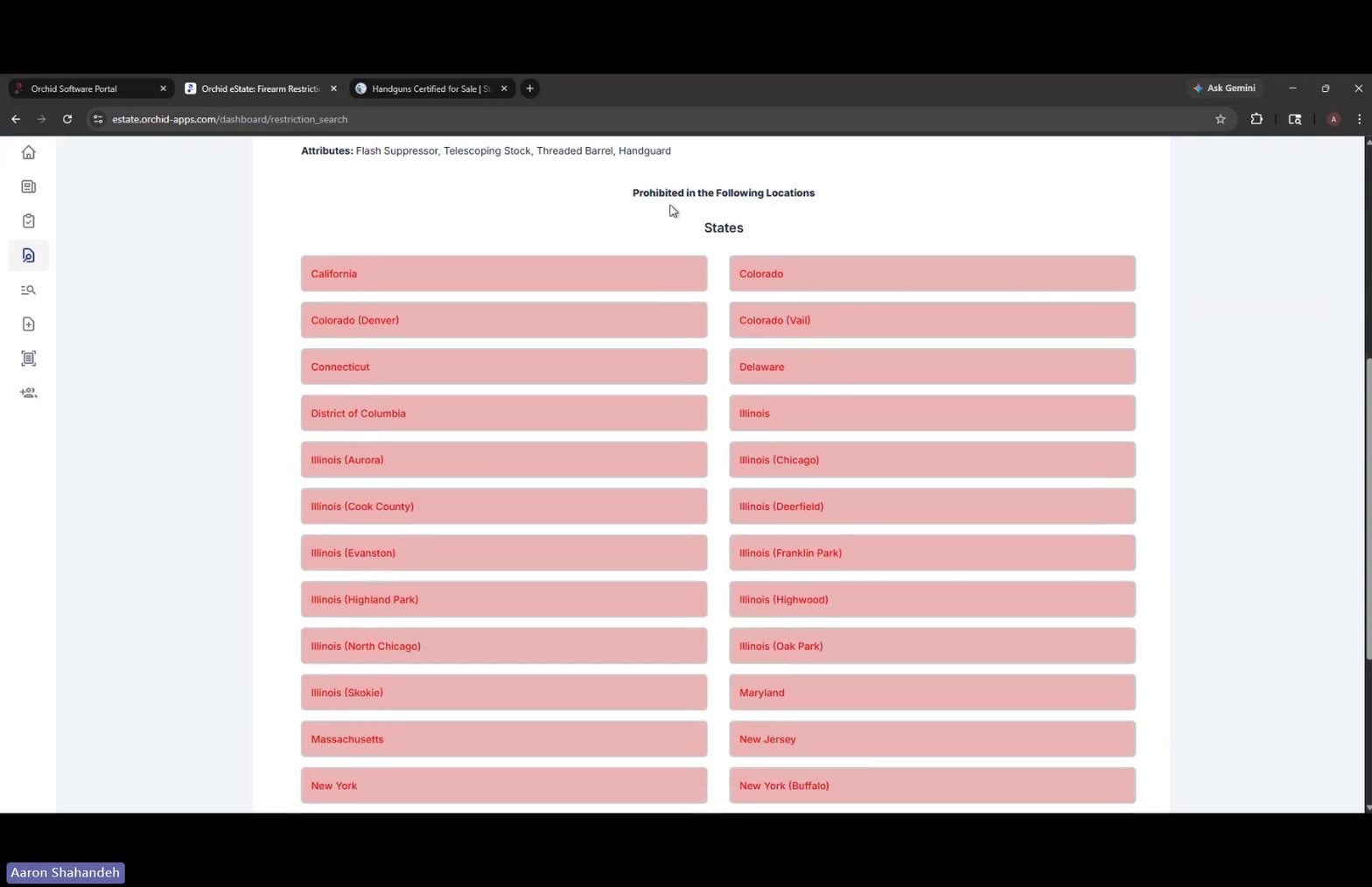
Restriction search results showing prohibited states
- Open Ammunition Search from the left menu. This module identifies ammunition restrictions, age requirements, and shipping restrictions across jurisdictions.
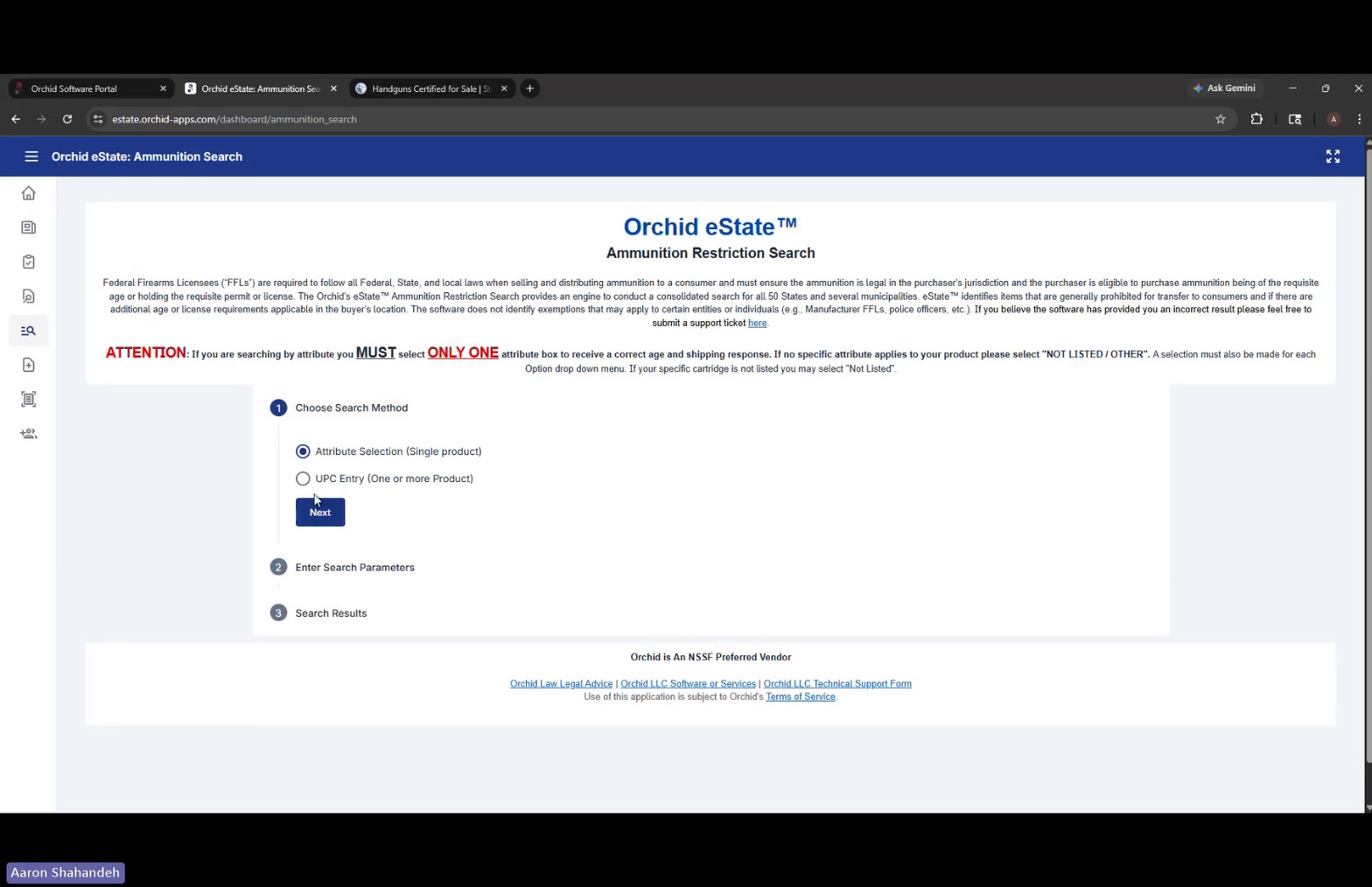
Ammunition Search landing page
- Choose your search method and click Next. Select Attribute Selection (Single product) or UPC Entry (One or more Product).
- Set State Selection and City Selection for ammunition. Choose All States or specific states, and optionally a city.
- Select Product Category and Subcategory. For example, Ammunition as the category and Assembled Cartridge as the subcategory.
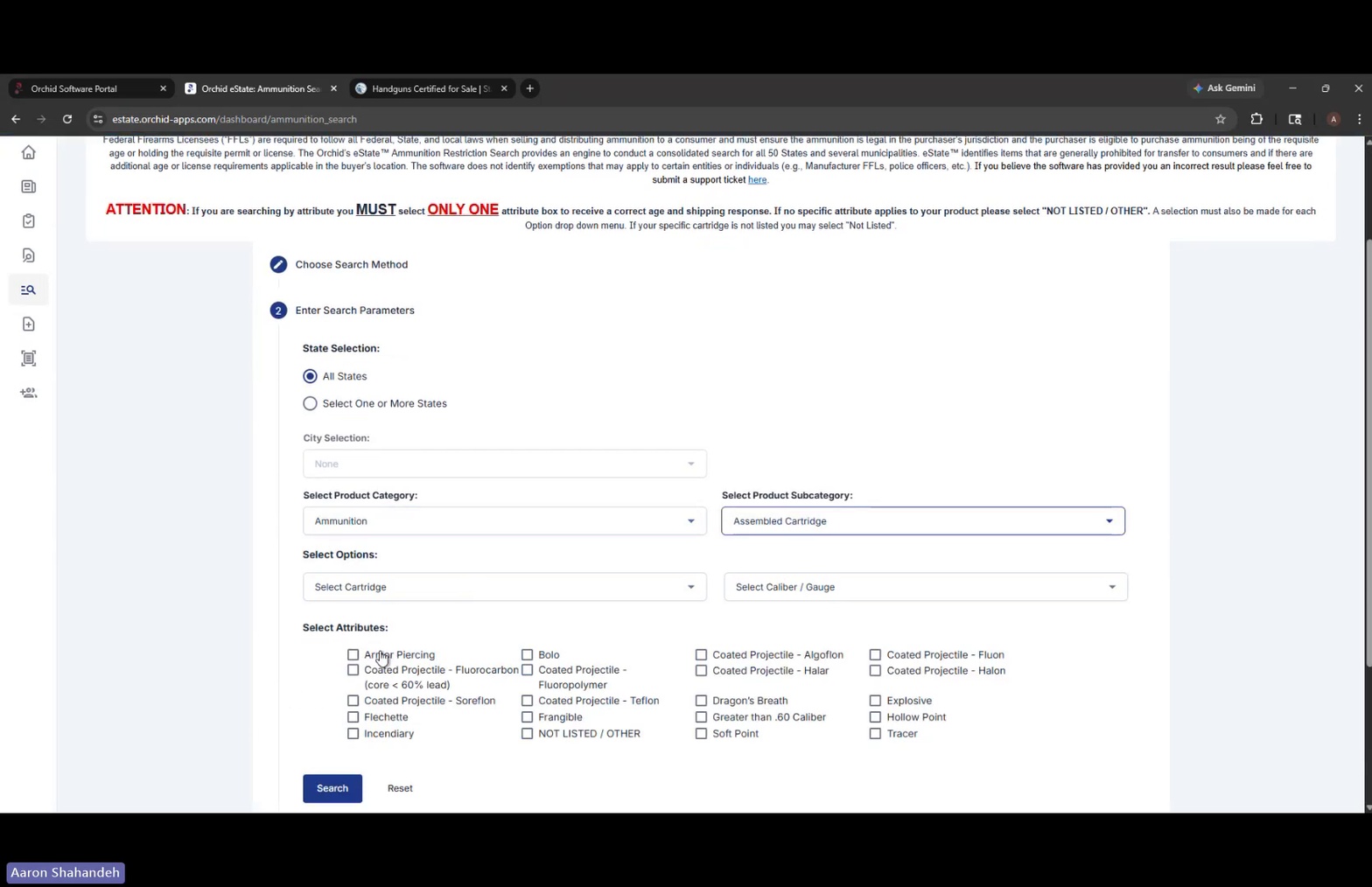
Ammunition search parameters
- Choose your Select Options. Pick a Cartridge (e.g., Centerfire) and a Caliber/Gauge from the dropdown (e.g., .223 Remington, .22 Winchester Rimfire, .220 Swift, etc.).
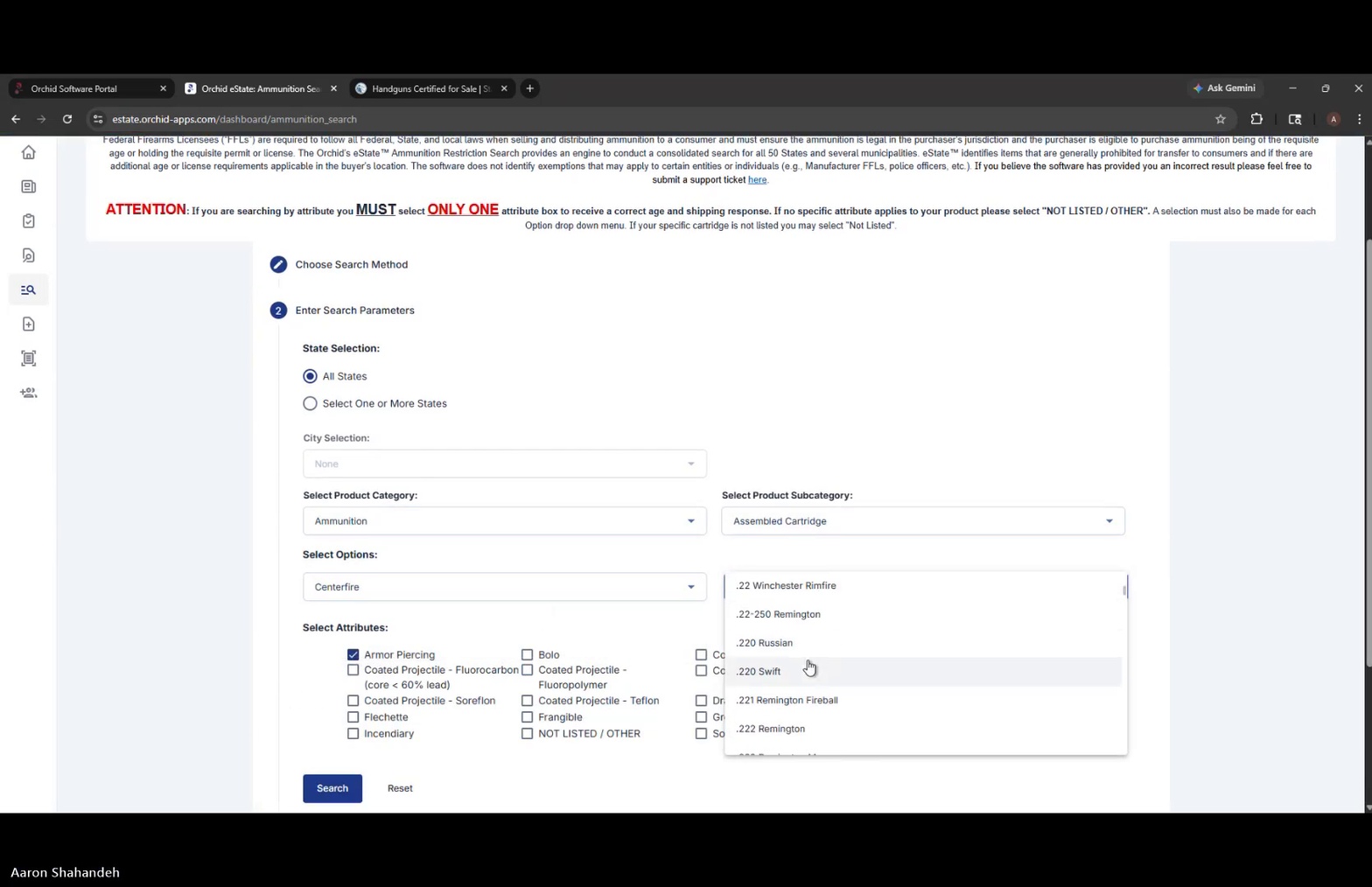
Caliber/Gauge dropdown open
- Select exactly ONE attribute checkbox. Per the on-screen ATTENTION notice, you must select only one attribute (e.g., Armor Piercing, Bolo, Hollow Point, Tracer, or NOT LISTED / OTHER) to receive an accurate age and shipping response.
- Click Search to run the ammunition restriction check. Use Reset to clear all fields.
- Review the Prohibited in the Following Locations results. Each restricted jurisdiction shows three links — Product Restrictions, Shipping Restrictions, and Age Restrictions — with a Restricted status under each.
Expected Result
You can sign in to Orchid eState, navigate the Dashboard, search and view bill details in the State and Federal Firearm Bill Tracker, look up statutes in the Firearm Law Library, run a Firearm Restriction Search, and run an Ammunition Restriction Search — receiving jurisdiction-by-jurisdiction restriction results for any product configuration.
Compliance
Restriction determinations rely on accurate product attributes and current state/local law. Orchid's eState handles this automatically, but if you have questions, Orchid's in-house compliance team is available to help.