How to Reconcile Daily Credit Card Transactions
This guide walks you through the daily reconciliation between credit-card transactions captured at the point of sale, in eCommerce, and across third-party marketplaces — and the actual cash that arrives in your bank account. Running this reconciliation every business day takes 10–20 minutes once you're in the rhythm, and it catches problems (missing batches, processor holds, marketplace fee surprises, fraud chargebacks) while they're still cheap to fix.
Use only the sections that apply to your business. If you do not sell on Guns.com or GunBroker, you can skip those parts entirely.
The Big Picture
Three potential channels feed your daily bank deposit. Reconciling means tying every dollar that hits the bank back to one of these sources:
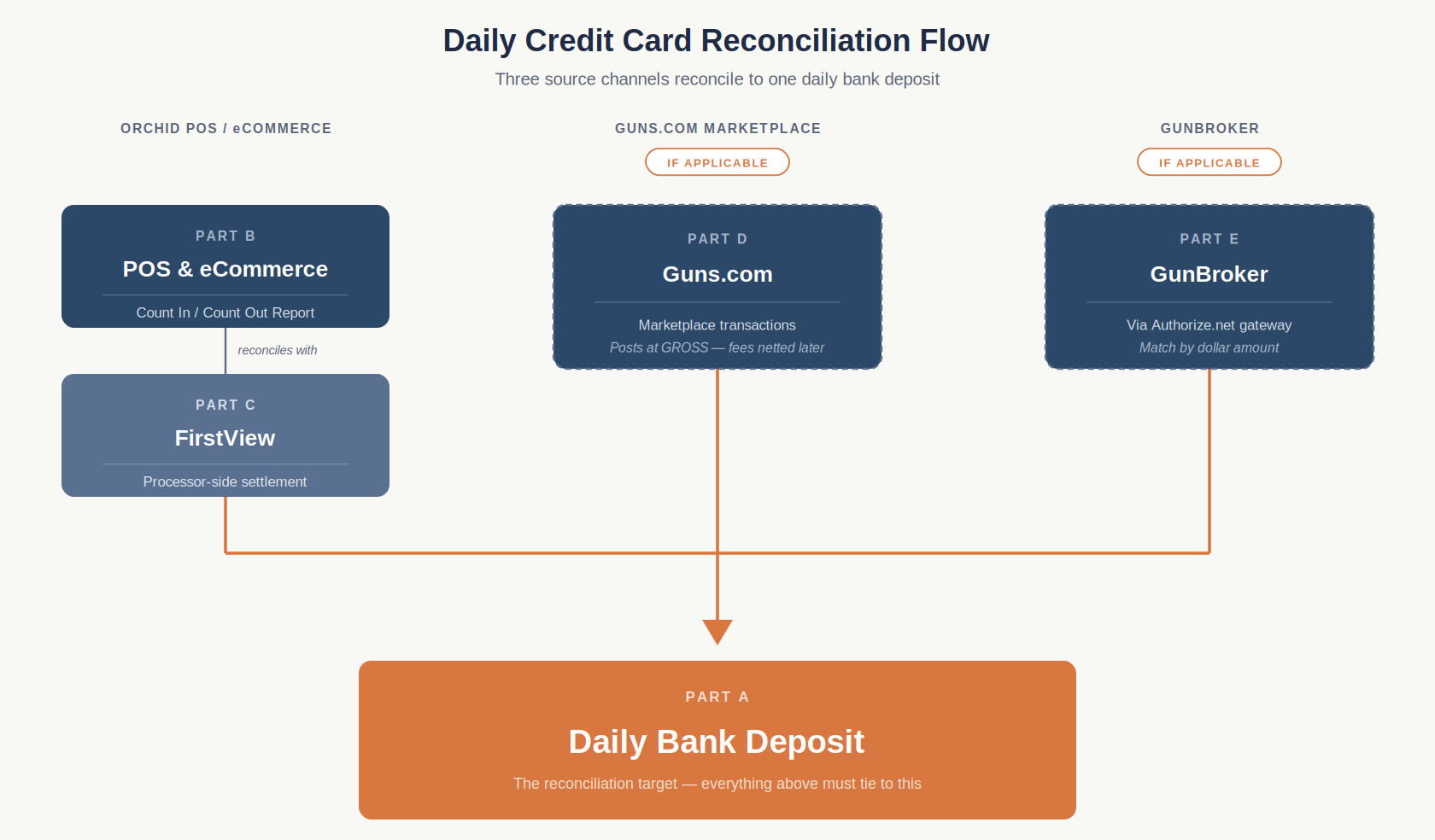
Read the graphic top to bottom: each channel (and its underlying reports) flows down into PART A — your daily bank deposit. Channels marked "IF APPLICABLE" only apply if actively selling on that marketplace.
Key Things to Note (Read First)
These four points will save you hours of reconciliation pain. Get them right at setup and the daily process becomes routine.
- Settlement timing may differ between First Pay and Authorize.net. First Pay and Authorize.net each have their own daily batch settlement time, and these may not be set to the same cutoff. Be aware of each system's configured batch time so you know which calendar day a transaction will land in. It is important to be aware of your batch times and how they affect your bank deposits. If your batch time is late in the day, you may not receive your bank deposit the next business day. Different cutoffs are also the most common cause of "off by one day" reconciliation breaks — if your totals are off by exactly one day's worth of transactions, check the batch times in each system.
- Guns.com transactions post at GROSS, not NET. Guns.com transactions appear in your Orchid Count In / Count Out report at the full ticket price. The marketplace fee is not netted out at the transaction level — it is deducted later when Guns.com remits the settlement deposit. Guns.com payments will appear as "Unclassified" in the POS payment records — this is expected and does not indicate an error. Go through the Count In / Count Out report and compare each transaction to what appears in the FirstView portal, marking each as accounted for on a per-drawer basis. Then reconcile the Guns.com marketplace deposit to your bank account separately.
- GunBroker transactions have no transaction ID. GunBroker.com transactions flowing through Authorize.net do not carry a GunBroker transaction ID into the processor. Match GunBroker line items to Authorize.net entries by exact dollar amount and timestamp. If you have two GunBroker sales for the same amount on the same day, use the buyer's name and shipping address to disambiguate.
- Transactions over the merchant processor hold threshold may be held or split. Any single transaction above the threshold set in your processor application hold threshold may be held by the processor's risk team or split into multiple smaller releases over several days. Don't panic when a large sale doesn't appear in tomorrow's deposit — check FirstView for the hold status before marking it as a discrepancy.
The Reconciliation Components
Each component is a piece of reconciliation puzzle. Work through each Part that applies to your business; skip the ones that don't.
- PART A — Your Daily Bank Deposit (the reconciliation target). This is the anchor. Every dollar of credit-card processing should ultimately tie to a line item on your bank statement. Pull this from your business checking account (typically online banking, prior-day transactions). Where to find it: Navigate to your online banking portal; Find your transaction report; Filter to: Deposits / Credits only, prior business day. Typical deposit line items you'll see: First Pay — Orchid POS + eCommerce settlement (Part C); Guns.com remittance — marketplace deposit via ACH or mailed check, net of fees (Part D, if applicable); Authorize.net settlement — GunBroker (Part E, if applicable); Other deposits (ACH from customers, refunds, etc.) — note separately.
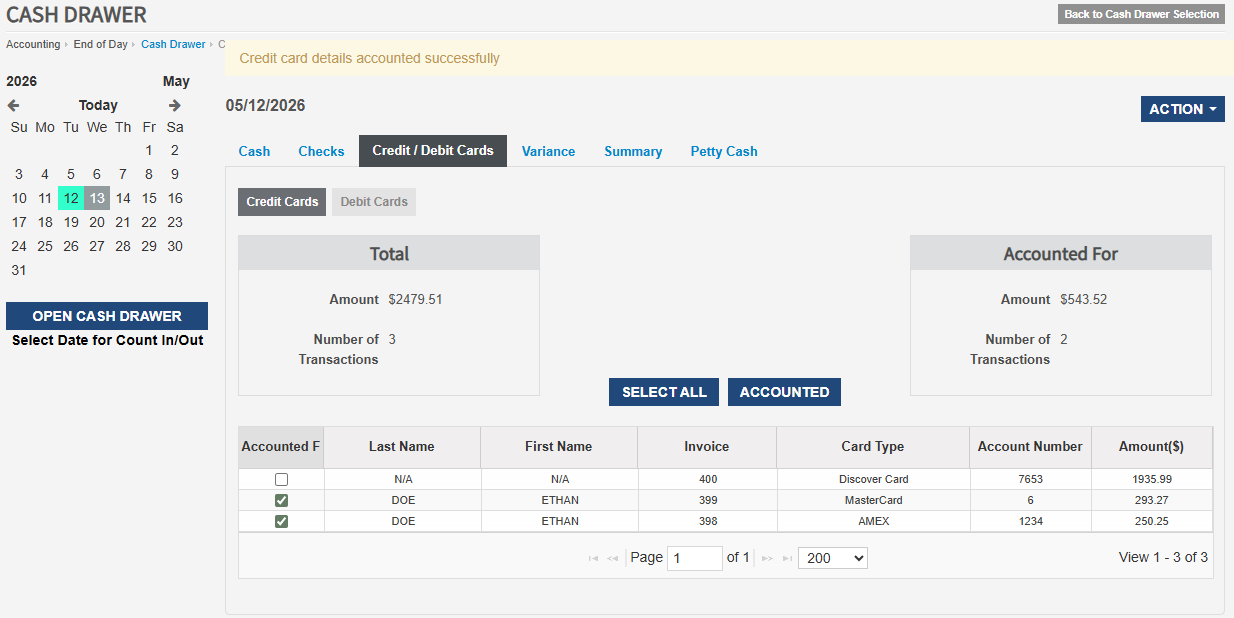
- PART B — Orchid POS / eCommerce — Count In / Count Out Report. This is Orchid's view of what your store and website sold. Every credit-card transaction taken at the register or through your Orchid eCommerce store is captured here. Each drawer must be accounted for separately. Note that Guns.com orders will also appear here but will not show in your processor (FirstView) — those are reconciled separately in Part D. Where to find it: Orchid POS; Navigate to: Accounting → End of Day → Count In / Count Out; Select your cash drawer: Filter to prior business day, Credit/Debit Card tender only. What to capture: Total credit-card sales for the day (sum of credits, less refunds); Transaction count; Any voided or reversed transactions (these should net out of the total).
- PART C — FirstView — Processor-Side Settlement. This is the processor's view of the same transactions captured in Part B. Part B and Part C should agree (within voids / pending captures). FirstView also tells you exactly what amount and what date will hit your bank account. Where to find it: FirstView portal: www.firstview.net; Screen / report: Reports -> Daily deposit detail; Filter to: prior business day batch. What to capture: Daily batch total (gross); Total processing fees deducted; Net deposit amount and expected funding date; Any held transactions (see Note 4).
- PART D — Guns.com Marketplace Transactions (IF APPLICABLE). Only complete this Part if actively listing and sell on Guns.com. Otherwise, skip ahead to Part E. Where to find it: Guns.com seller dashboard; View Sold orders; Filter to: prior business day, completed orders. Reconciliation note: Guns.com transactions also appear in the Orchid Count In / Count Out report (Part B) at the GROSS amount. The marketplace fee is netted only when Guns.com sends its settlement deposit to your bank. To reconcile fully: Tie gross Guns.com sales to the Guns.com line items inside Part B; Tie the Guns.com bank deposit (Part A) to gross sales LESS marketplace fees; Investigate any gap.
- PART E — GunBroker Transactions (via Authorize.net) (IF APPLICABLE). Only complete this Part if actively selling on GunBroker.com. Otherwise, skip this section. Where to find it: Authorize.net merchant interface www.authorize.net; Report: Settlement Report; Filter to: prior business day settlement batch. Reconciliation note: GunBroker transactions in Authorize.net DO NOT include a GunBroker transaction ID. Match by dollar amount (and, if needed, buyer name or shipping address from your GunBroker order export). Authorize.net will settle to your bank account at the configured batch time — confirm this matches your First Pay settlement time per Note 1.
Steps
Follow these steps in order. Total time once you're in the routine: 10–20 minutes depending on transaction volume.
- Pull Part A (Bank Deposit). Log into the online banking portal. Note every credit/deposit line item from the prior business day.
- Pull Part B (Orchid Count In / Count Out). From Orchid POS Admin, run the Count In / Count Out report for the prior business day, credit card tender only.
- Pull Part C (FirstView). Log into FirstView, open the daily batch report, confirm batch total and expected funding date.
- Reconcile B ↔ C. Compare the transactions in Part B (Orchid Count In / Count Out) against Part C (FirstView) and mark each transaction as accounted for on a per-drawer basis. The totals should agree — a variance of more than a few dollars indicates a missed capture or unmatched void. Investigate before moving on.
- Pull Part D (Guns.com), if applicable. Export the prior-day Guns.com transactions report. Tie gross to the Guns.com line items inside Part B.
- Pull Part E (Authorize.net for GunBroker), if applicable. Pull the daily settlement batch from Authorize.net. Match by dollar amount to your GunBroker order export.
- Roll up to Part A. Sum: First Pay net deposit (from Part C) + Guns.com remittance (from Part D settlement, if posted) + Authorize.net settlement (from Part E). This sum should match the credit card deposit line items you pulled in Step 1.
- Document and file. Save the day's worksheet. Any unresolved variance should be escalated to paymentsupport@joinorchid.com
Expected Result
- Part B (Orchid Count In / Count Out) and Part C (FirstView) agree within voids / pending captures.
- The sum of First Pay net deposit + Guns.com remittance + Authorize.net settlement matches the credit card deposit line items in your bank account (Part A).
- The day's worksheet is saved and any unresolved variance is escalated to paymentsupport@joinorchid.com.
When the Numbers Don't Tie — Troubleshooting
Most reconciliation breaks fall into one of these patterns. Work through them in order of likelihood:
- "Off by one day." Settlement cutoff mismatch between First Pay and Authorize.net, or a late batch time delaying the deposit. Check each system's configured batch time (see Note 1).
- Missing batch. Batch failed to settle. Check FirstView for a pending batch with an error status. Call First Pay support at (888) 711-3800
- Large transaction missing from deposit. Likely held by risk per Note 4. Check FirstView for a hold status. May release over multiple days.
- Guns.com line items don't match. Returns or chargebacks processed against original orders. Pull the Guns.com return/dispute report for the matching date range.
- GunBroker dollar amount appears twice in Authorize.net. Either a duplicate buyer at the same price, or a re-authorization. Match by buyer name from GunBroker order export to disambiguate.
- Net deposit is less than expected. Likely processing fees deducted up front instead of monthly. Check First Pay account settings for "fee deduction frequency."
- Chargeback appears. A debit to your account, separate from your daily batch. Flag for your risk/compliance contact at paymentsupport@joinorchid.com.
Contacts & Escalation
- Orchid Pay Support. Orchid Pay Customer Service — paymentsupport@joinorchid.com
- FirstView Login Help. First Pay Tech Support — (888) 711-3800
- Guns.com Seller Support. Guns.com — https://www.guns.com/contact
- GunBroker Support. GunBroker — https://support.gunbroker.com/hc/en-us/requests/new
- Authorize.net Merchant Support. Authorize.net — support.authorize.net
💡 Tip
Running this reconciliation every business day takes 10–20 minutes once you're in the rhythm, and it catches problems (missing batches, processor holds, marketplace fee surprises, fraud chargebacks) while they're still cheap to fix.