How to Connect Vendor Feeds in Orchid
This article explains how to enable Live Vendor Access and enter the account information and credentials required to connect supported vendor feeds to Orchid. Credential requirements vary by vendor, and some vendors require additional setup or approval before the integration can be used.
Supported vendors covered in this article include Davidson's, Bill Hicks, Lipsey's, RSR, Sports South, Camfour, and Chattanooga Shooting Supplies.
Make sure you already have an active account with the vendor you are connecting. Some vendors must enable additional services, such as API, FTP, or integration access, before Orchid can connect to the account.
Access Vendor Integrations
Before configuring an individual vendor, first open the Inventory integrations page and make sure Live Vendor Access is enabled.
- From the main Orchid menu, select Manage.
- Select Store Configuration.
- Select Integrations.
On the Integrations page:
- Select the Inventory tab.
- Locate the Live Vendor Access section.
- Turn Enable Live Vendor Access to ON.
- Scroll to the vendor you want to connect and turn on that vendor's individual integration toggle.
- Enter the credentials or account information required for that vendor.
Live Vendor Access must be enabled before using the individual vendor integrations. Enabling Live Vendor Access does not automatically activate every vendor. Only vendors that are individually enabled and properly configured can be used.
Vendor Setup Requirements
Davidson's
Before beginning the integration, contact your Davidson's representative and confirm that your account is ready to use the integration.
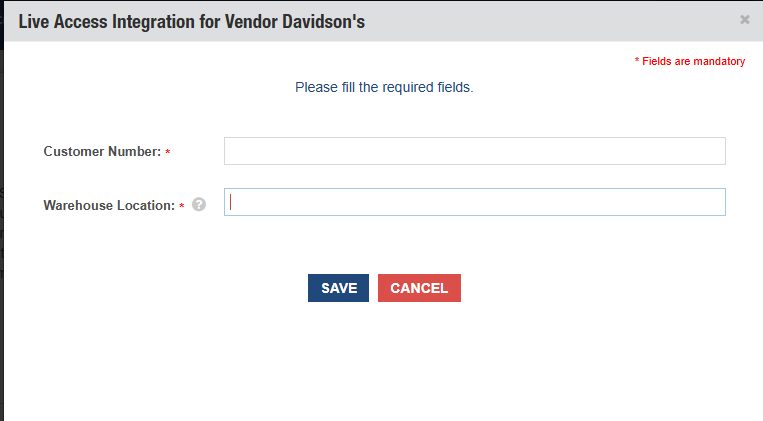
- Customer Number: Your customer number provided by Davidson's.
- Warehouse Location: Enter P for Prescott, Arizona or G for Greensboro, North Carolina.
Bill Hicks
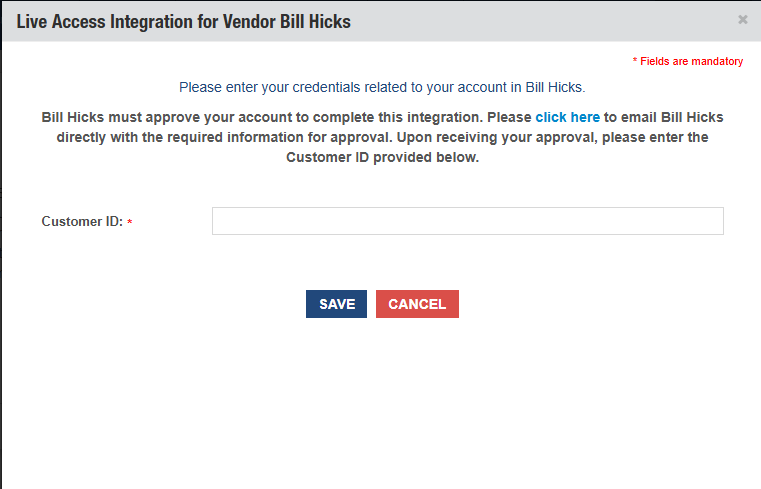
- Customer ID: Enter the Customer ID provided by Bill Hicks.
Lipsey's
Lipsey's uses account credentials for Catalog and Inventory, Store Orders, and Drop Shipping. Customers with a separate Lipsey's drop shipping account may have different credentials for that portion of the integration.
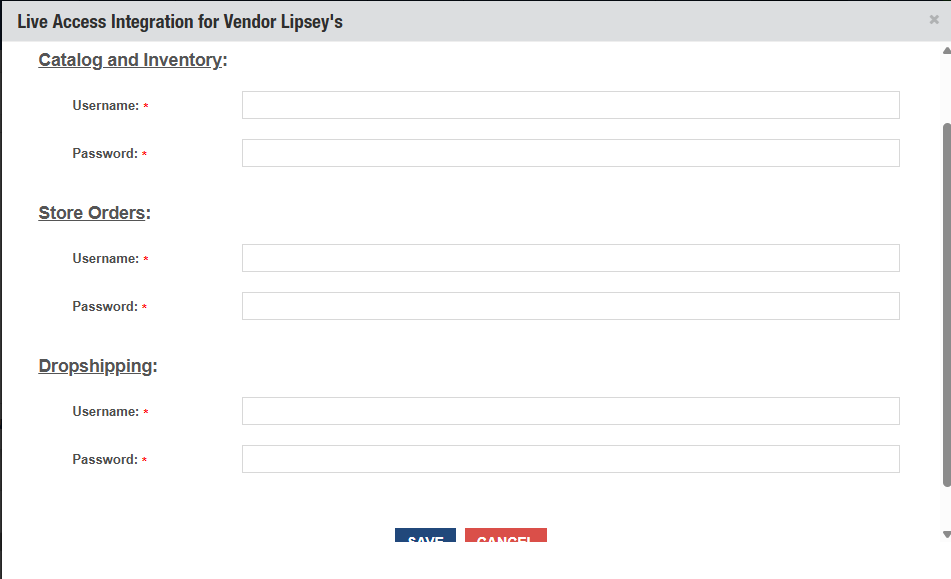
Catalog and Inventory
- Username: Your Lipsey's store account email or username.
- Password: The password associated with your normal Lipsey's store account.
Store Orders
- Username: Your Lipsey's store account email or username.
- Password: Your normal Lipsey's store account password.
Drop Shipping
- Username: Use the separate drop shipping username provided by Lipsey's, if applicable.
- Password: Use the password associated with your Lipsey's drop shipping account.
RSR
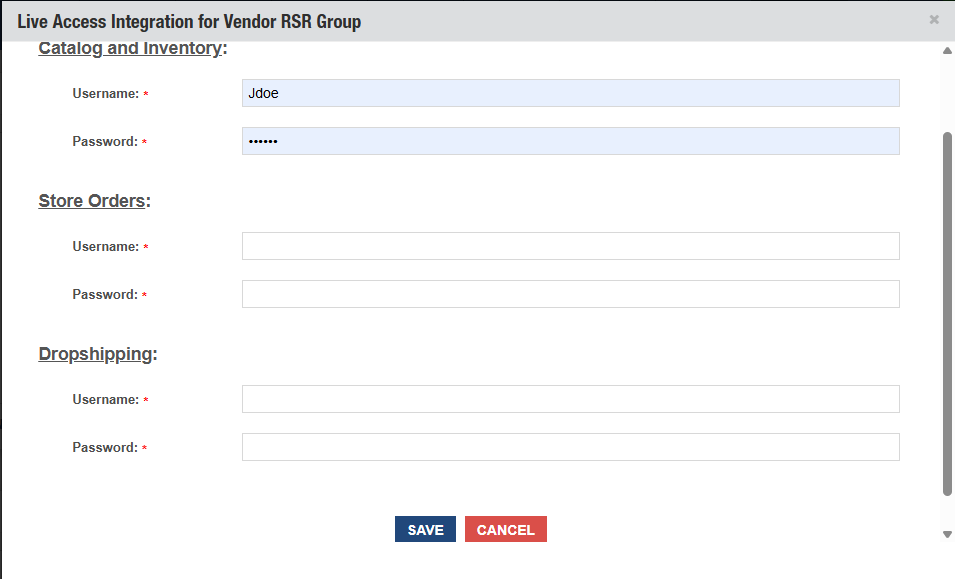
RSR requires separate access for the catalog feed and order placement. Complete the required RSR setup before entering your credentials in Orchid.
Step 1: Request FTP Access
FTP access is required for the Catalog and Inventory portion of the integration.
Sign in to your RSR account and go to:
Complete the requested steps. Once approved, RSR will provide the FTP credentials needed for the Catalog and Inventory fields in Orchid.
Step 2: Confirm API Access
RSR API access is required for order placement. To request or verify API access, contact RSR at directconnect@rsrgroup.com.
Catalog and Inventory
- Username: Store Account Number
- Password: FTP password provided by RSR
Store Orders
- Username: Store Account Number
- Password: Normal RSR website password for the store account
Drop Shipping
- Username: Drop Shipping Account Number
- Password: RSR website password associated with the Drop Shipping Account
Sports South
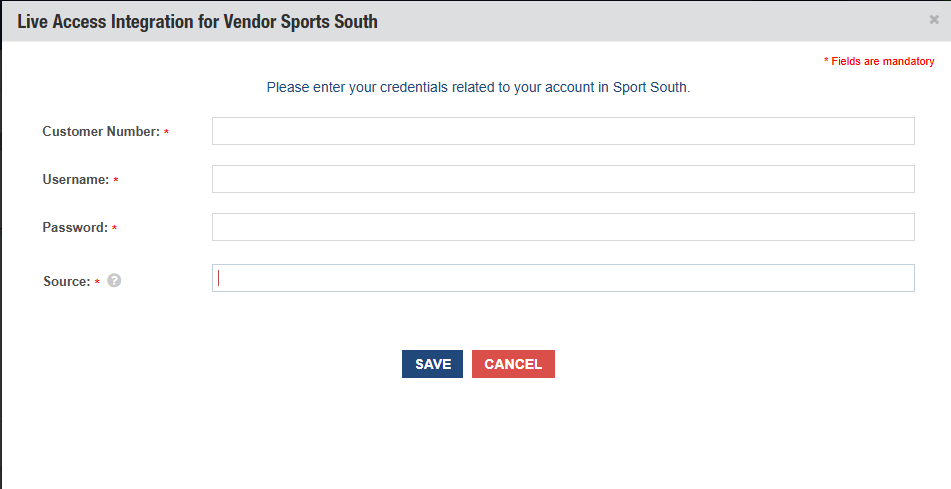
- Customer Number: Enter the Customer Number provided by Sports South.
- Username: Enter the same Sports South Customer Number.
- Password: Enter the ZIP code associated with the store account. Remove any leading zero.
- Source: Enter Orchid.
Camfour
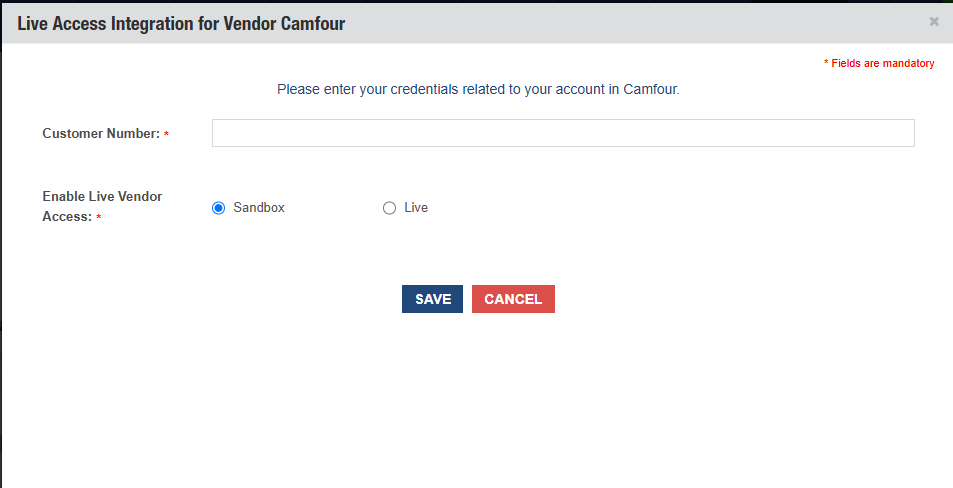
- Customer ID: Enter the Customer ID provided by Camfour.
Chattanooga Shooting Supplies
Chattanooga uses API credentials for its live vendor feed. Your Chattanooga account must first be enabled for API access before the integration can be connected to Orchid.
Step 1: Enable API Access
Chattanooga must enable API access for your customer account. Once enabled, you will receive access to the Chattanooga API Developer Portal.
Step 2: Retrieve Your SID and Token
- Sign in to your account at chattanoogashooting.com.
- Open your account and select Developer Portal.
- Inside the Developer Portal, select V4.
- Locate and copy your SID and Token.
- SID: Your unique Chattanooga API account identifier.
- Token: The secure API token associated with your SID.
Step 3: Enable Chattanooga in Orchid
In Orchid, go to:
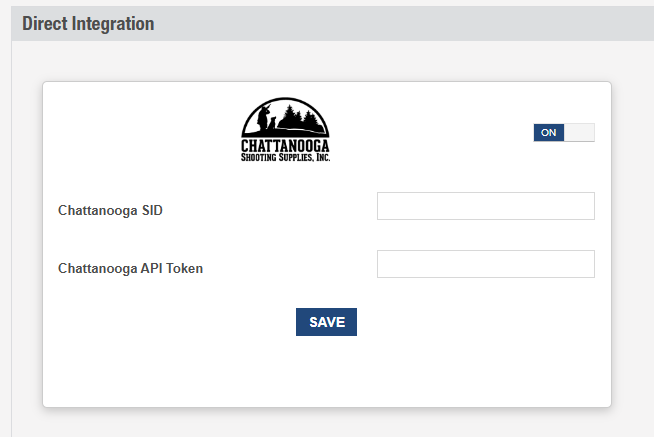
- Locate the Chattanooga integration.
- Turn on the Chattanooga integration using the toggle.
- Enter your Chattanooga SID and Token.
- Save your changes.
- If the Developer Portal is missing, contact Chattanooga and confirm that API access is enabled.
- If the Chattanooga integration toggle is unavailable or you do not have access to enable it, contact Orchid Support.
Expected Result
- Live Vendor Access is enabled.
- The selected vendor integration is turned on.
- The required vendor credentials are entered into the appropriate fields in Orchid.
- Any required vendor-side activation, API access, FTP access, or account approval has been completed.
- Orchid can successfully connect to the vendor feed without an authentication error.