How to Set Up the GunMade Integration
How to enable the GunMade eCommerce integration and control which inventory items are visible on GunMade.
Steps
- Enable the integration. GunMade is a third-party integration and must be turned on by Orchid before it will appear in your store. Reach out to the Orchid Support team and request that the GunMade integration be enabled for your account.
- Confirm the integration is on. Once Orchid Support has enabled the integration, confirm it in your POS: Navigate to Manage › Store Configuration › Integrations › eComm tab.
- Locate the GunMade panel. The toggle in the top-right corner of the panel will be set to ON.
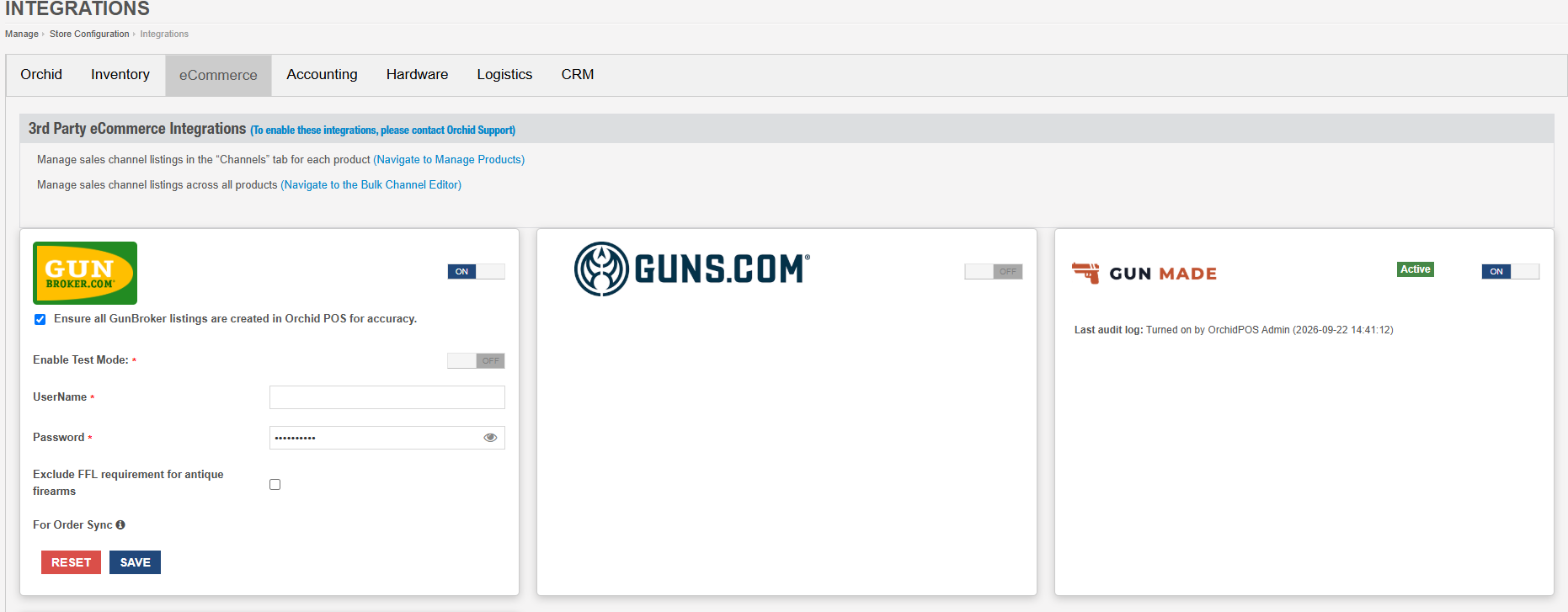
The eComm tab under Manage › Store Configuration › Integrations, with GunMade active.
- Turn on GunMade visibility for items. GunMade item visibility is tied to your POS's eCommerce (“eComm”) visibility setting for each item — there is no separate GunMade-only toggle. Turning on eComm visibility for an item also makes it visible on GunMade. You can do this one item at a time, or in bulk.
- Option A — turn on visibility for a single item. Open the item you want to publish, go to its Sales Channel tab, and turn on the eComm visibility toggle.
- Option B — turn on visibility in bulk: open the inventory search page. Go to Inventory › Manage Products › Inventory to open the inventory search page.

- Switch to Storefront view. Switch the page to Storefront view using the View dropdown.

- Select items and apply the bulk action. Select the checkboxes for the items you want to make visible. Open the Bulk Actions menu and choose “Turn ON Orchid eComm Visibility.” This turns on GunMade visibility for every selected item as well.
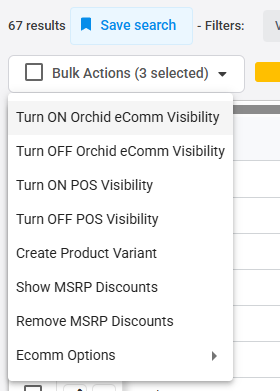
💡 Tip
Turning eComm visibility OFF for an item (individually or via Bulk Actions → “Turn OFF Orchid eComm Visibility”) will also remove it from GunMade, since GunMade visibility follows the same setting.