- Default price formulas allow you to set your preferred discount and mark up levels for any new inventory item and helps you establish your Retail price (as well as other available pricing levels).
- These defaults will be used if creating a single new inventory item and while importing new items from the Catalog System.
- Make sure to establish your substitute formula for MSRP & MAP related pricing, when MSRP or MAP is $0.
- If you set your Retail price to match MSRP or MAP, and it is $0, you need a backup plan based on cost. Most vendors do provide MSRP but not all, and oftentimes not for all parts (repair parts, for instance, often have $0 MSRP and MAP).
- If you set your Retail price to match MSRP or MAP, and it is $0, you need a backup plan based on cost. Most vendors do provide MSRP but not all, and oftentimes not for all parts (repair parts, for instance, often have $0 MSRP and MAP).
These can be setup at a Taxonomy level or a global level.
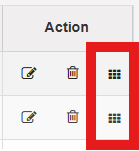
For taxonomy level pricing navigate to Inventory > Manage Products > Taxonomy and select the 9 squares under action. These can be setup at a department level, a category level, or a sub category level.
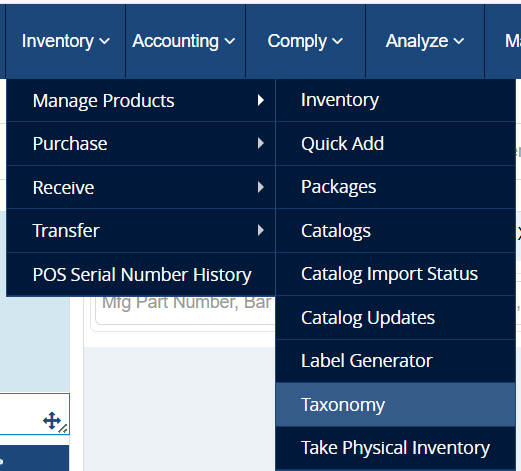
To setup global price levels go to Accounting > Pricing & Discounts > Global Price Settings
Pricing will be applied in this order, existing item pricing, sub cateogry level pricing, category level pricing, department level pricing, and if none of those are setup then it will use global pricing.
- Retail, MSRP, and MAP columns are discount percentages.
- Cost(MarkUp) and Gross Margin columns are increase percentages. (Cost markup must be greater than 100 our you are losing money)
For example, if you want your Retail price to be 5% less than MSRP, you would enter 5 in the Retail row/MSRP column.