Use Copy Formula to set Price Levels, Discounts, and More
Price Levels can be used to pre-set discount levels and establish pricing based on profit, cost, or other parameters. You can set relationships between the price levels called formulas. For example, Preferred Customer price level can be set to 10% ...
Published Jan 26, 2021
Updated Jul 31, 2026
1330 views
Pricing
Pricing
Price Levels can be used to pre-set discount levels and establish pricing based on profit, cost, or other parameters. You can set relationships between the price levels called formulas. For example, Preferred Customer price level can be set to 10% below Retail, with this discount being copied across all inventory or a subset of your inventory.
They are a great way to offer default discounts to customers while retaining control and flexibility over your pricing.
Any time you use the pricing grid columns on a part’s details page to set price levels it will turn the field you used blue.
Once the field is blue, it is now a formula and can be used as a template to copy the setting to other inventory items.
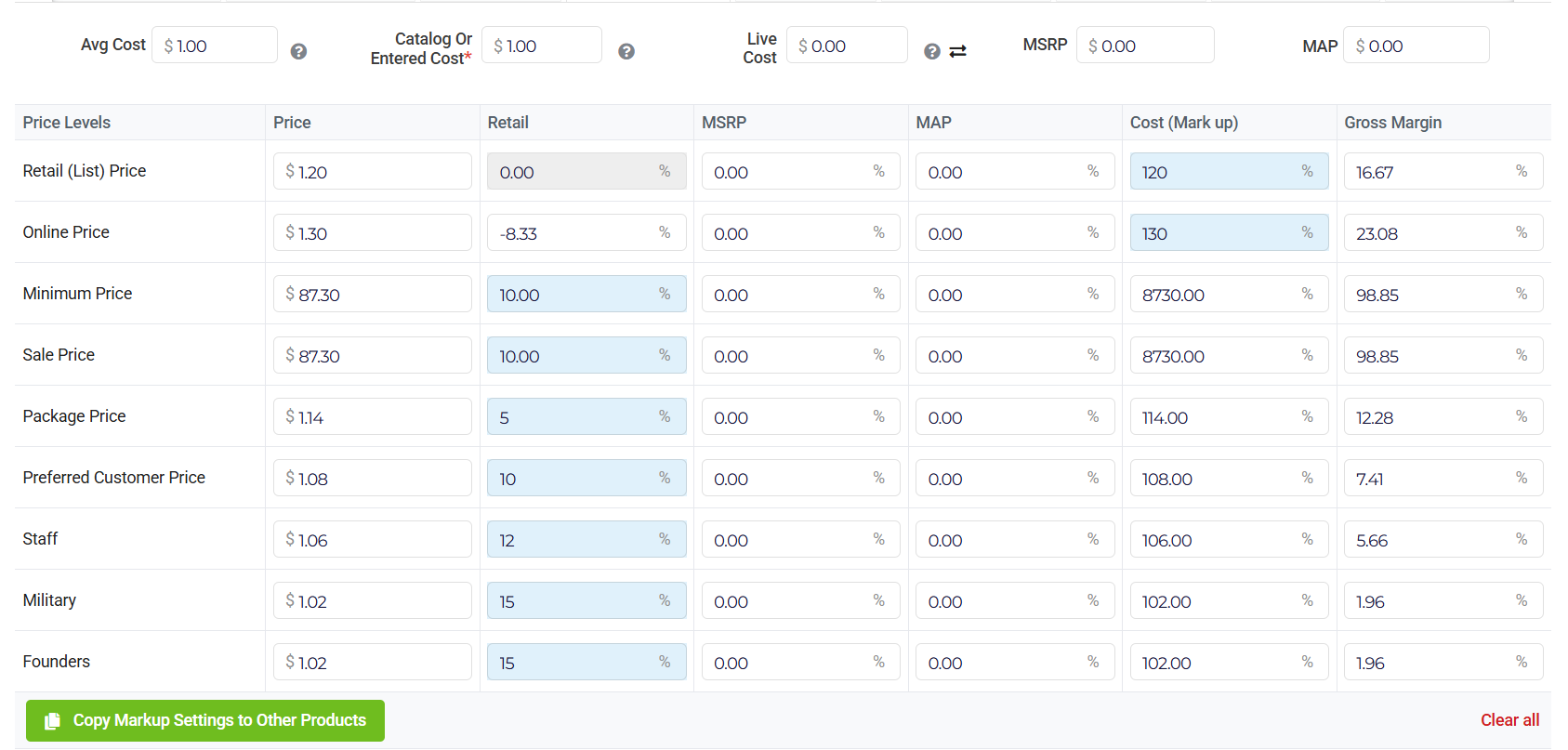
Retail and MSRP formulas are percentage discount fields, and Cost (Mark Up) and Gross Margin columns are increase percentage fields.
To Copy Pricing Formulas:
1. Bring up any qualifying item under Inventory > Manage Products > Inventory > find a part you want to use as example pricing > set one or more price formulas. Save the changes to the part.
2. Then, click Copy Formula button to reach this page:
3. Toggle ON ONLY the price levels you want to copy from the existing part in bulk.
4. Select the items you would like to copy this formula to using the category, manufacture, vendor, and department drop downs.
5. Set your substitute formulas. These are important to address Retail and MSRP based formulas, if any item happens to have $0 in that field.
6. MAKE SURE to click the “overwrite manually entered pricing” option at the bottom, then click Apply Formula.
7. Orchid POS will begin working; status results will post to Manage > Import/Export Data > Import page. You will see a status bar appear; you can close the tab without affecting results.