Enhancing Compliance and Decreasing Inventory Times: Handling Unit Generator
Overview Handling Units are parcels of serialized goods that are packaged to assure no items are added, removed, or altered. For example, pallets of finished goods that are shrink wrapped or otherwise maintained in tamper-proof packaging, may be ...
Published Oct 30, 2020
Updated Apr 19, 2026
4 views
Other Apps
SNIT
Overview
Handling Units are parcels of serialized goods
that are packaged to assure no items are added,
removed, or altered. For example, pallets of finished goods that are shrink
wrapped or otherwise maintained in tamper-proof packaging, may be considered a handling unit.
The Handling
Unit Generator is a preparation tool for those
who conduct inventories with the SN Inventory Tool.
It permits you to assign
multiple Serial Numbers
to a unique barcode ID (e.g.,
a handling unit)
that can be printed and
affixed to the
side of a shelf, pallet
or multi-unit box.
If the location has been untouched (or sealed), then the grouping
of Serial Numbers
can be inventoried in one scan.
Software Needed
•
Handling Unit Generator
Hardware Recommended
• Scanner
o
1D, 2D or QR scanner
(1D minimum)
o
Bluetooth or Wireless
o
Suggested Scanners
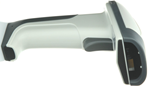
▪ Rhorawill Handheld Red Light CCD Barcode Scanner|500 Times/Sec USB 1D Bar Code Reader
▪
Esky ES017 Handheld USB Wired Barcode
Scanner - Automatic 1D and 2D QR Code Reader
Instructions for How to Create a Handling Unit
1. From the portal
main menu, click
on Handling Unit
Generator
2.
The Handling Unit Generator List will now display. To create a Handling Unit,
click the Add
Handling Unit button.
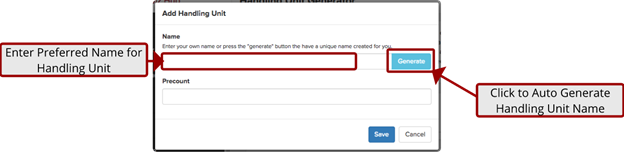
3. The New Handling
Unit pop up screen will
now display. You will now need to name the Handling Unit being created.
a.
To enter a particular name
for the Handling
Unit, click to type in the “Name” field.
b.
To
have a name
automatically generate for
the Handling Unit,
click the “Generate” button.
4. After you have
manually entered or auto generated a name for the Handling Unit, in the field “Pre-Count” you will
need to enter
a pre-count of firearms contained within this Handling Unit.
This count should
reflect all firearms
to be included within this
handling unit.
5.
Once Handling Unit Name
and Pre-Count have
been entered, click
Save. The Handling Unit List screen will update, and include the newly enter
Handling Unit.
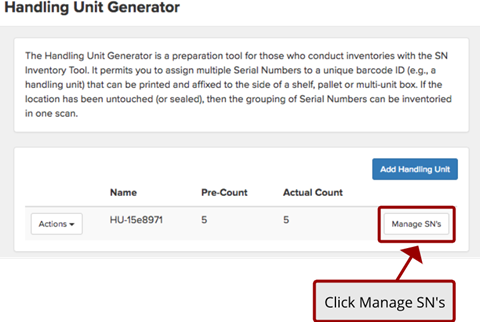
6. From the Handling Unit List screen,
Click Manage SN’s
button.
7.
The Handling Unit Detail screen
will now display.
You will need to select
the Entry Method you will be utilizing to document serial
numbers within the Handling Unit.
a. Manual should be
selected if serial numbers will be hand-entered for each firearm. Please
note, to assure
accuracy of data,
dual entry is required for all
manually entered serial
numbers. Click “Save”
after each serial
number entered
b. Scanned should
be selected if serial numbers
will be captured
via a barcode scanning device.
Single capture of serial number
is required for Scanned entries. Click “Save”
after each serial
number scanned.
8.
Continue to Manually enter
or scan all item serial
numbers contained in the handling unit. As serial numbers are
documented, the Handling Unit Detail Screen’s reconciliation dashboard will update.
9.
If errors are made with
any item’s serial
number, or items
are removed from the
Handling Unit, you must delete
the serial number.
To delete a serial number,
click the “Action” button to the left of the serial
number and select
“Delete.”
10.
After all serial numbers
have been entered
or scanned, verify
Pre-Count and SN Count
are equal, and SN Remaining is “0.” If there are discrepancies, you must conduct
a new Pre-Count and
review of all serial numbers
entered or scanned
until the errors
can be corrected.
11.
Once SN Count
and Pre-Count are reconciled, click
Back to Handling Unit Generator.
12.
From the Handling Unit
Generator List screen,
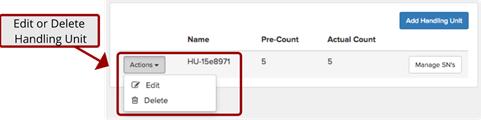
you may edit
or delete a Handling Unit,
as well as manage
all serial numbers
that each Handling Unit contains.
a.
Edit or Delete
Handling Unit
b.
Manage Handling Unit Serial Numbers