Getting Started
Step 1. Navigate to POS - Inventory - Manage Products - Catalogs
Now you can select individual Vendors, or search
Manufacturers or Categories, you can also use the keyword search to find
specific UPC’s or Part Numbers.
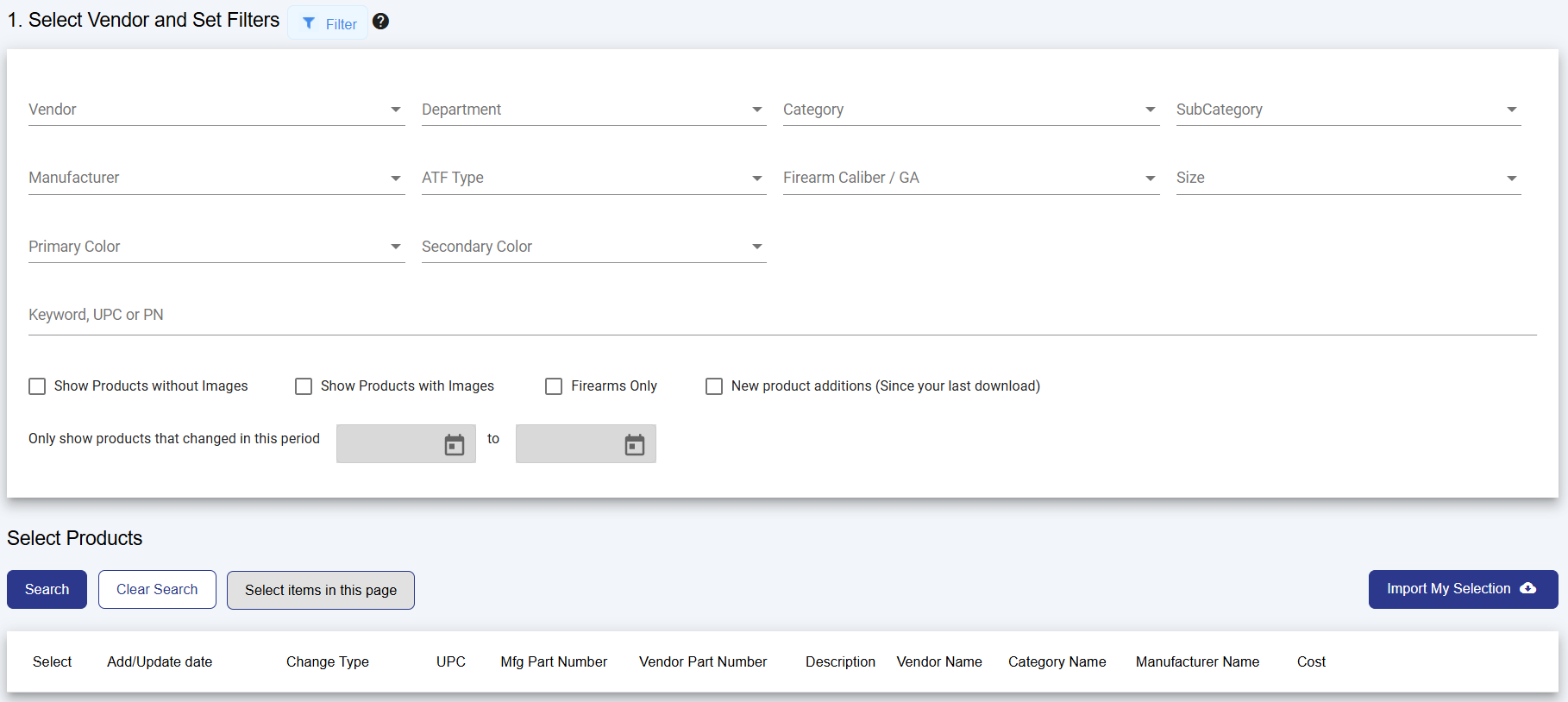
To add Products to your inventory, you can select on either the + next to the item you wish to add, or you can use the Select Items on this page to Bulk Add products into your inventory, through the import my selection button
If you bulk add products you will have to ensure that each field is Mapped or you can select Add All unmapped to add them in, and then click on Save & Proceed.
After this is completed you will need to have the system
validate, you cannot close out of this screen. When it is completed you will
find all of the products in your Manage Products Page.